How Do I Revoke and Add Fresh Credentials for an Integration?
Last updated: June 30, 2026
Go to Settings → Connectors, click the three-dot menu next to the credential that's failing, choose Revoke, then click Connect on the integration to add a fresh credential. This works the same for every OAuth integration in Gumloop.
When to Do This
A node or agent tool is failing with a credentials/authentication error and you've already tried Refresh.
The OAuth provider revoked your token (password change, admin policy, scope change on their side, or extended inactivity).
You want to swap the account behind a credential (e.g., move from a personal Google account to a workspace account).
You added a new permission or scope on the provider side and need Gumloop to re-request it during sign-in.
How to Revoke and Re-Add a Credential
Step 1: Open the apps page where the credential lives
Personal credentials and team (shared) credentials live in different places:
If the failing agent or workflow uses your personal credential, go to Settings → Connectors.
If it uses a team/shared credential, open Settings → Teams, select the team, and open its Apps tab. See How Do I Add Shared Team Credentials (Team Apps)? for details on team apps.
Step 2: Revoke the broken credential
Scroll to the integration that's failing (e.g., Microsoft, Google Sheets, Slack, Snowflake).
Find the specific credential row that's broken — each connected account shows its own row with its label (e.g., Email Inbox 1) and last-refreshed timestamp.
Click the … (three-dot) menu on the right of that row.
Click Revoke. This removes the credential from your account.

Step 3: Add a fresh credential
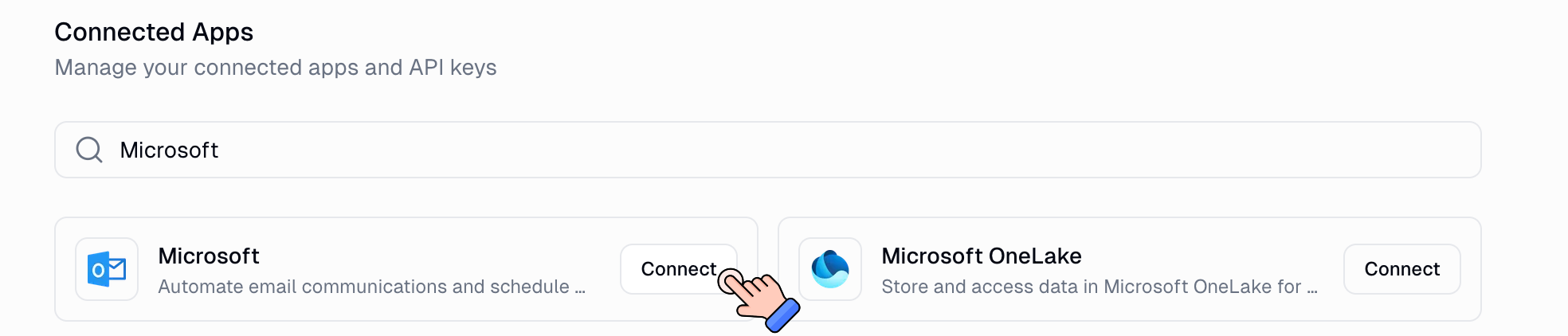
On the same apps page, find the integration card at the top (or search for it in the Connected Apps search bar).
Click Connect.
Sign in to the provider in the popup and approve the requested permissions.
You'll be returned to the apps page with a new, healthy credential row.
How Do I Know It Worked?
The credential row shows Last refreshed with a current timestamp (seconds or minutes ago).
Re-run the failing agent or workflow — the credentials error should be gone.
Still Need Help?
If this didn't resolve your issue, reach out to support at support@gumloop.com.