My Custom Slack App Agent Isn’t Responding in the Channel — How Do I Fix It?
Last updated: April 27, 2026
This usually happens when the custom Slack app credential hasn't been assigned to the agent itself, or when the client secret or signing secret was copied incorrectly from Slack. Verify the credential is linked to the agent via the "Add to Slack" modal, and re-copy secrets with the values unblurred.
Symptoms
You've set up a custom Slack app, the webhook URL is configured, and the bot is invited to the channel — but the agent never responds when mentioned.
You have multiple agents using separate custom Slack apps in the same channel, and none of them respond.
You see
bad_client_secretor an "Unable to obtain custom_slack_app tokens" error in your setup flow.
Cause
Setting up a custom Slack app has two distinct steps that are easy to conflate: adding the credential (on the Apps page) and assigning it to a specific agent (via the agent's "Add to Slack" button). Completing only the first step stores the credential but doesn't tell Gumloop which agent should receive messages from that Slack app.
Each custom Slack app maps to exactly one agent. If you want two agents in the same channel, you need two separate Slack apps — each with its own Client ID, Client Secret, Signing Secret, and bot user — and each must be individually assigned to its respective agent.
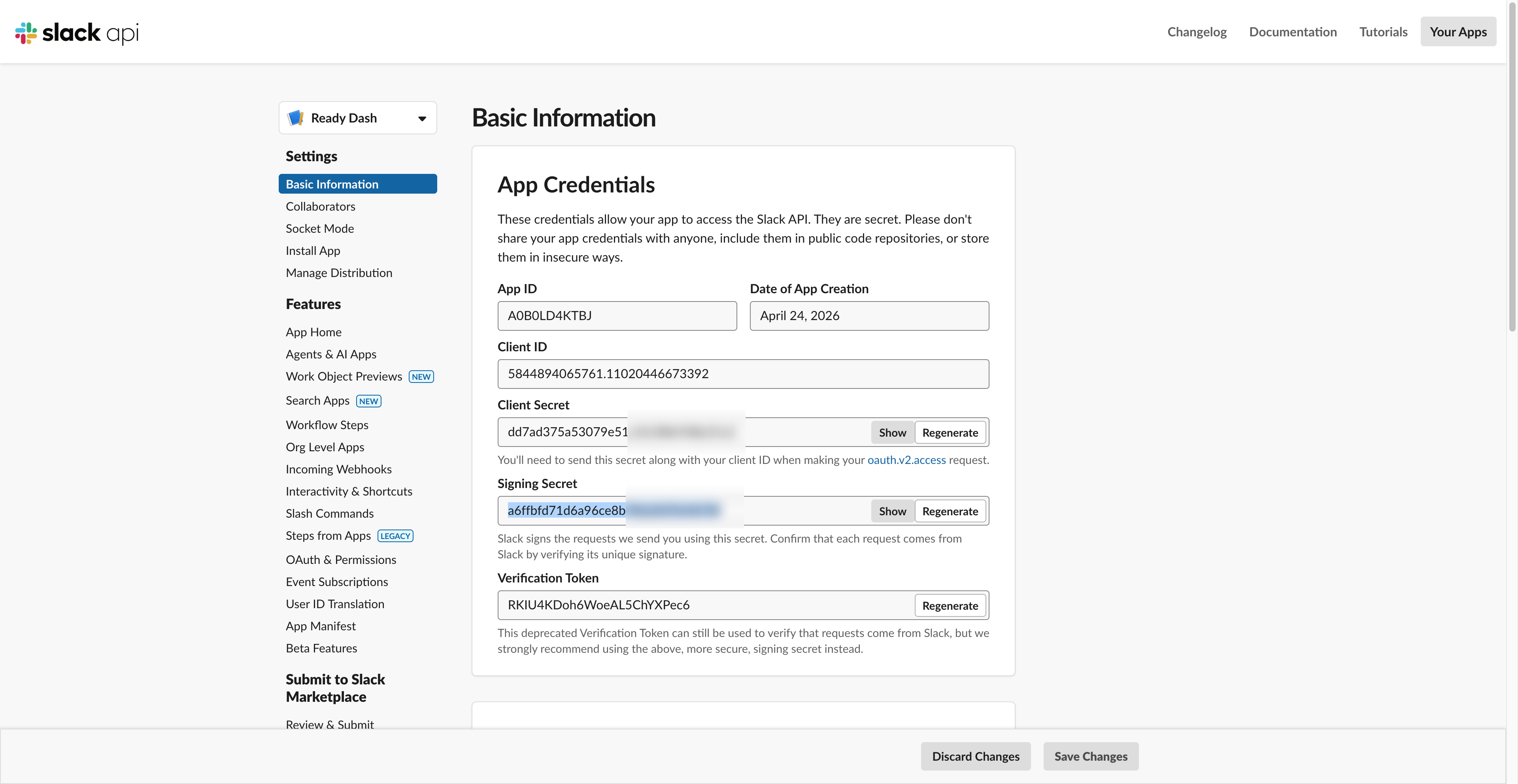
A secondary cause is copying the Client Secret or Signing Secret while the value is still blurred in Slack's dashboard. Some browsers copy the masked dots instead of the actual value, which produces a bad_client_secret error during the OAuth flow.
How to Fix It
Verify you have separate Slack apps for each agent. Go to api.slack.com/apps and confirm each agent has its own distinct Slack app with a unique Client ID and bot user. One Slack app cannot serve two agents.
Re-copy your secrets correctly. For each Slack app, go to Basic Information → App Credentials. Click "Show" next to both the Client Secret and Signing Secret to unblur them first, then copy. Do not copy while the value is still masked.
Revoke and re-add the credential on Gumloop (if needed). If you suspect the stored credential has a bad secret, go to Settings → Apps, find the custom Slack app credential, click Revoke, and then re-add it with the correct secrets.
Rename your credentials so you can tell them apart. After re-adding, custom Slack app credentials may show as account numbers rather than friendly names. Click the credential name on the Apps page to rename it (e.g., "Sales Bot" and "Support Bot").
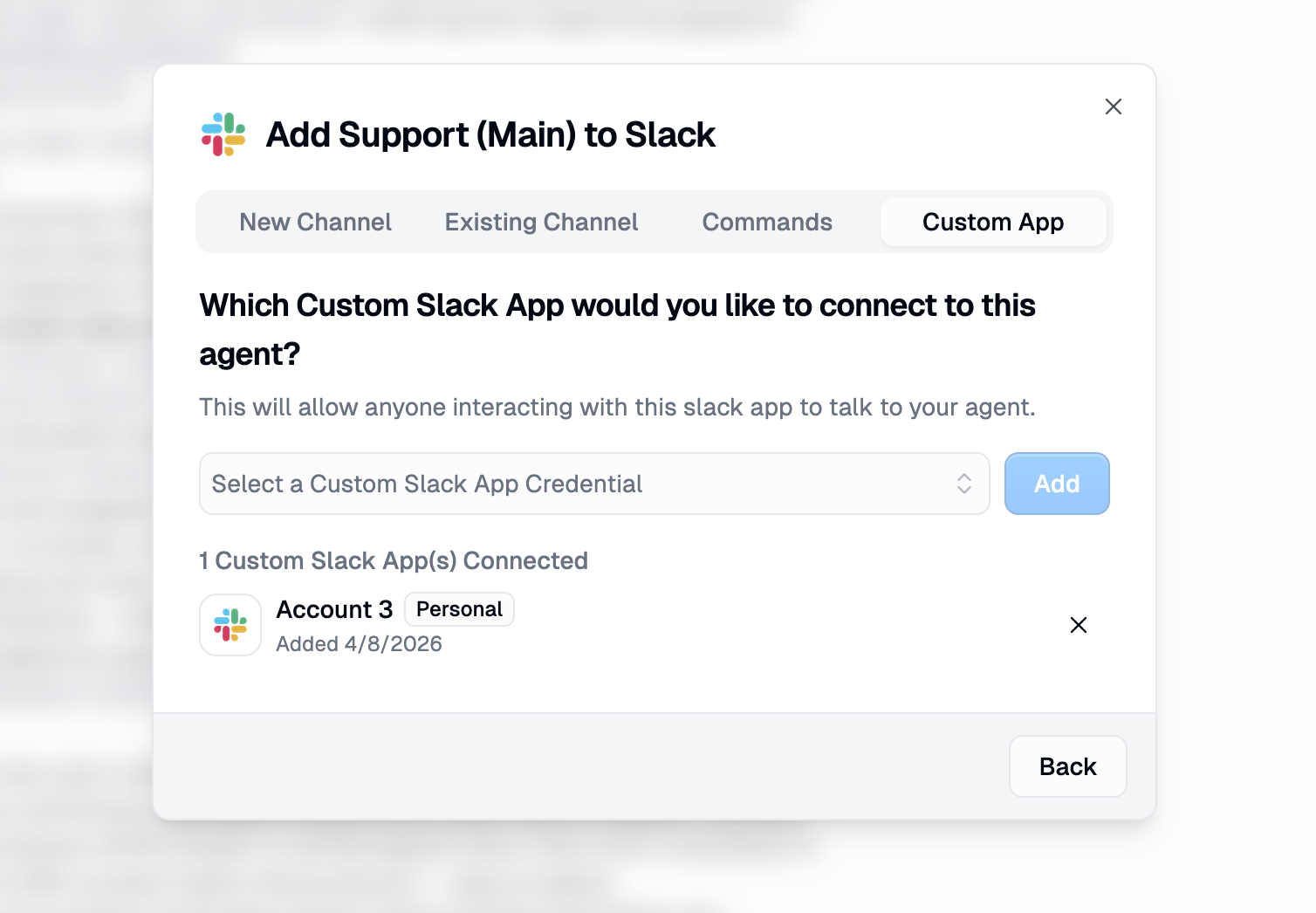
Assign each credential to its agent. This is the most commonly missed step. Open your agent, click the "Add to Slack" button in the top bar, select the "Custom App" tab, choose the correct credential from the dropdown, and click Add. Repeat for each agent with its respective credential.
Invite each bot to the channel. In Slack, run
/invite @YourBotNamefor each custom bot. Each Slack app has its own bot user that must be invited separately.Test by @mentioning the bot. In the channel, type
@YourBotName hello. The agent should respond. Test each bot individually.
How Do I Know It Worked?
The "Add to Slack" modal on each agent shows the custom Slack app as connected.
Each bot responds when @mentioned in the channel.
If you have multiple agents, each one responds independently to its own bot mention.
Common Mistakes
Adding the credential but not assigning it to the agent
The Apps page stores the credential. The "Add to Slack" modal on the agent is what activates it. Both steps are required.
Using one custom Slack app for multiple agents
Each custom Slack app routes to exactly one agent. If you need two agents in the same workspace, create two separate Slack apps.
Copying blurred secrets
Always click "Show" to reveal the Client Secret and Signing Secret in Slack before copying.
Forgetting to re-assign after revoking
If you revoke and re-add a credential, you also need to go back to the agent and re-assign the credential via the "Add to Slack" modal.
Still Need Help?
If this didn't resolve your issue, reach out to support at support@gumloop.com.