How Do I Change My Email Address on Gumloop?
Last updated: March 22, 2026
You can change your email address from your profile settings. You'll need to verify the new email before the change takes effect, and you'll be signed out afterward.
How to Change Your Email
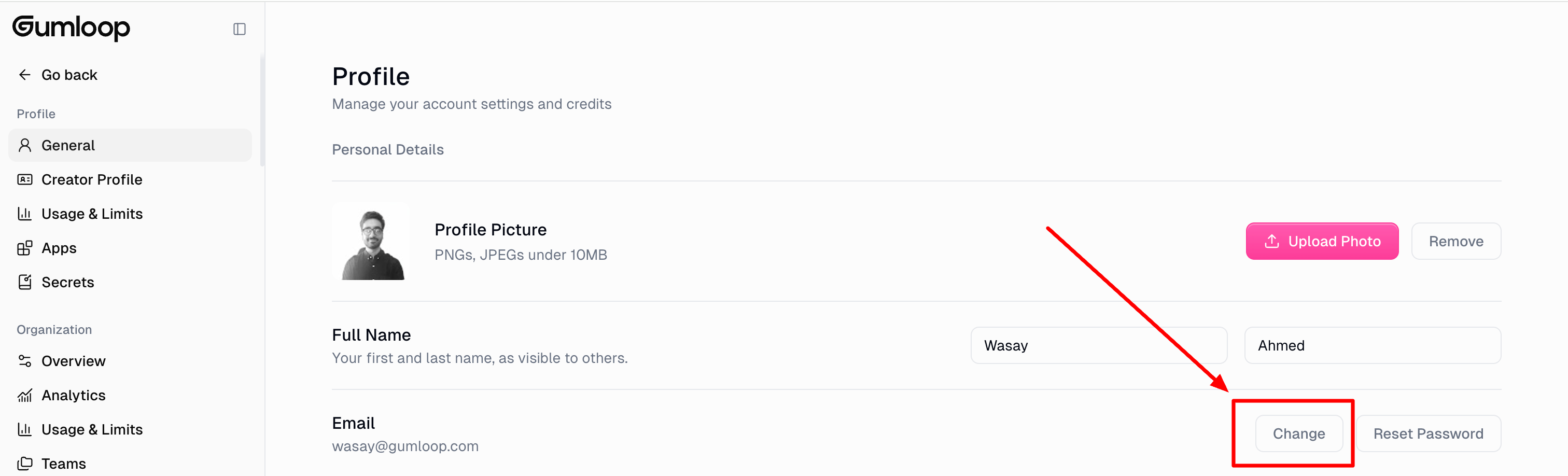
Go to Settings > Profile > General.
In the Personal Details section, click Change Email.
Enter your new email address and confirm it.
If prompted, re-enter your current password to reauthenticate.
Check the inbox of your new email address for a verification link from Gumloop.
Click the verification link to confirm the change.
You'll be signed out automatically — sign back in using your new email address.
Things to Know
Your account stays intact. Your agents, workflows, billing, and organization membership are all tied to your account ID — not your email. Nothing is lost when you change your email.
The new email can't already be in use. If the email address is registered to another Gumloop account, the change will be blocked. You'll need to use a different email or delete the other account first.
SSO-enforced organizations can't self-serve. If your organization enforces Single Sign-On (SSO/SAML), the email change option won't be available. Contact support@gumloop.com to request an email change instead.
You must verify before the switch happens. Your email won't actually change until you click the verification link. If you don't receive it, check your spam folder or try again.
Still Need Help?
If this didn't resolve your issue, reach out to support at support@gumloop.com.