How to Allow Other Users to Edit My Workflow
Last updated: April 7, 2026
You can share any workflow directly with another user — no team required. Open the workflow, click Share, enter their email, choose Editor, and click Share. They'll have full edit access immediately.
How to Share a Workflow as an Editor
Open the workflow you want to share.
Click the Share button in the top-right corner.
Enter the other person's email address in the "Add people" field.
Click the dropdown arrow on the Share button and select Editor.
Click Share.
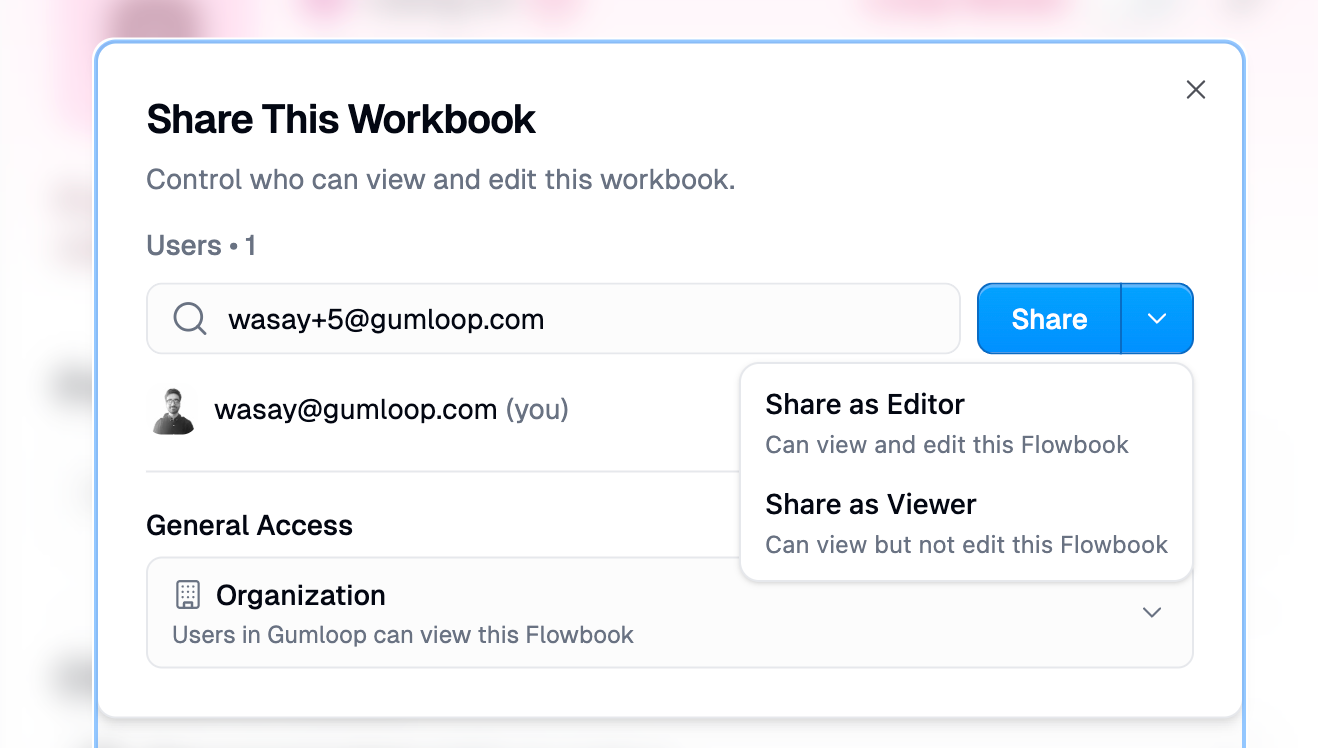
The person you shared with can now view, edit, run, and manage sharing for the workflow. They don't need to be on your team or in your organization — any Gumloop user can be added by email.
Available Roles for Workflows
Role | What they can do |
Editor | View, edit, run, manage triggers, create templates, manage sharing |
Viewer | View the workflow and make a copy to their own space — cannot edit or run |
To change someone's role after sharing, open the Share dialog, click the role label next to their name, and select a different role or Remove.
Sharing With Your Whole Team or Organization
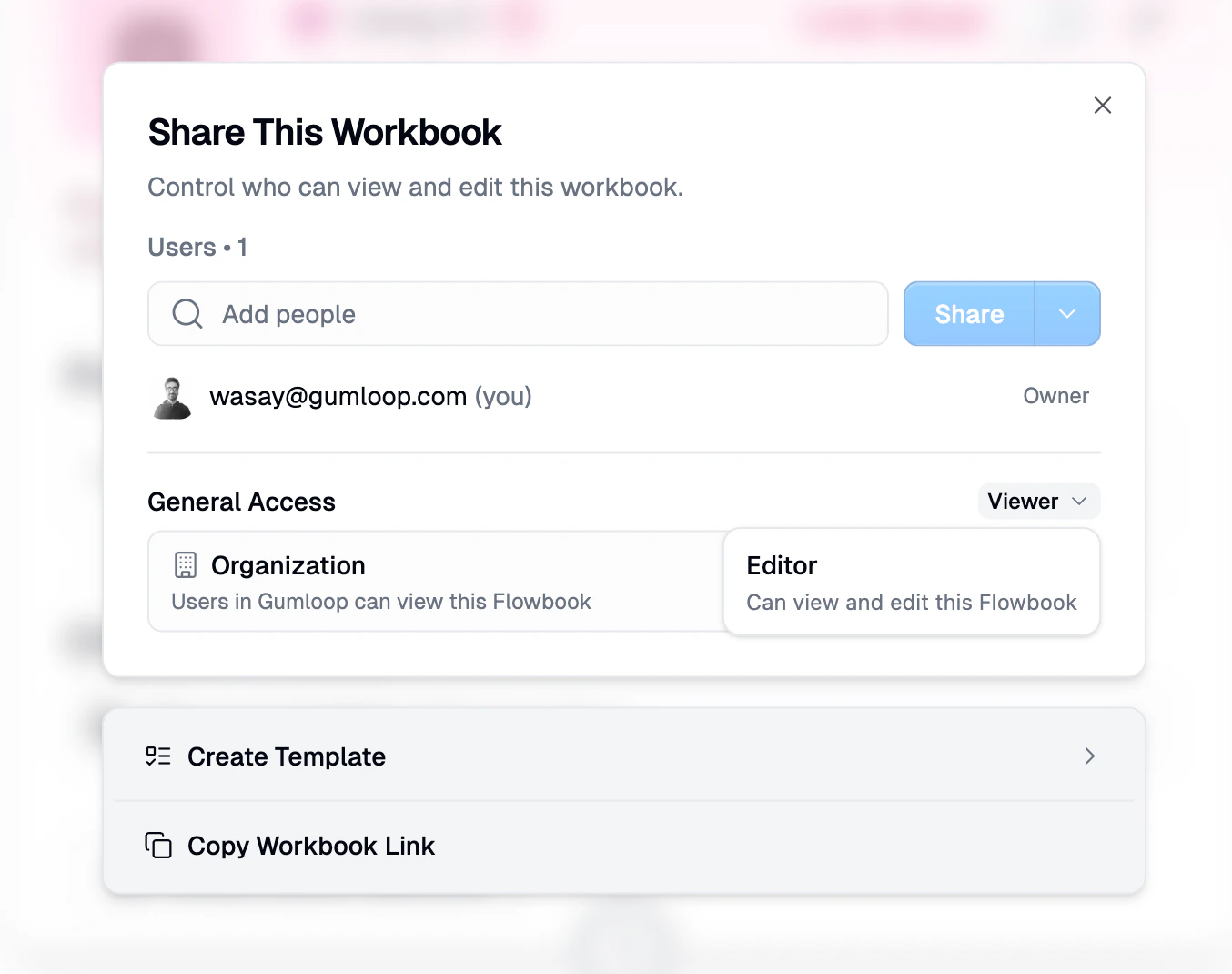
If you want everyone on your team or in your organization to have access without adding them one by one, use General Access:
Open the workflow and click Share.
In the General Access section at the bottom, select Team, Organization, or Anyone with link.
Choose the role (Editor or Viewer) for that audience.
Alternative: Using a Team Workspace
You can also move a workflow into a Team if your group collaborates on multiple resources in a shared workspace.
Go to the Home page or Flows page.
Click the three dots (⋮) next to the workflow and select Move to Team.
Make sure the other person is a member of that team — see How Do I Add Someone to My Team?
Direct sharing via the Share button is usually simpler. Use teams when you want a shared workspace for ongoing collaboration across many resources.
Good to Know
Workflow access and interface access are independent. Sharing a workflow does not automatically share its interfaces, and vice versa.
If your workflow is shared, Editors can see the full run history — including runs from other users.
Viewers (and above) can Make a Copy of your workflow to their own space.
Anonymous users with a public link are capped at Viewer access, regardless of the General Access role setting.
If you need someone to run a workflow without seeing it, share it as an interface instead.
Related Docs
Still Need Help?
If this didn't resolve your issue, reach out to support at support@gumloop.com.