Skills Don't Have Version History — How to Protect Against Bad Edits
Last updated: April 7, 2026
Skills are overwritten in place when updated — there is no version history, no undo, and no rollback. If your agent (or another user's agent) makes a bad edit to a skill, the previous version is gone. This article covers how to protect your important skills before that happens.
What Happens When a Skill Is Edited
When an agent updates a skill — whether you asked it to or it decided to on its own — the old content is replaced with the new content. There is no diff, no changelog, and no way to see what the skill looked like before the edit.
This applies to:
The
SKILL.mdfile (instructions and frontmatter)Any files in
scripts/,references/, orassets/The skill's description and metadata
The old files are deleted from storage and replaced with the new ones. This is by design — it keeps skills simple and avoids complexity — but it means you need to protect important skills proactively.
How to Protect Your Skills
1. Download a backup before enabling agent editing
If you have a skill that took time to build and you're about to let the agent modify it, download a copy first:
Go to the Skills page
Find the skill → click the three-dot menu (⋮)
Click Download
This gives you a zip of the skill's files. If the agent breaks something, you can re-upload this zip to restore the original.
2. Disable agent editing for stability
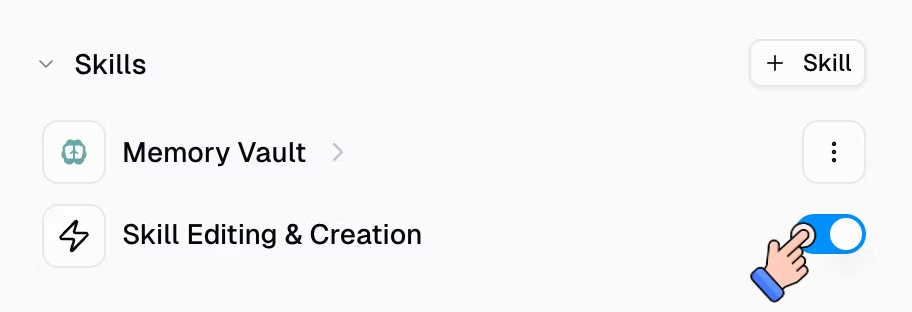
The Skill Editing & Creation toggle in your agent's Tools configuration controls whether the agent can modify skills. When disabled:
The agent can still read and use all attached skills
The agent cannot create, modify, or delete skills
Any changes the agent makes to skill files in the sandbox during the conversation are not saved
This is the safest option if your skills are mature and you don't want them changing.
Important: This toggle is all-or-nothing. It applies to every skill on the agent. There is no way to lock individual skills while keeping others editable.
3. Use the system prompt to protect specific skills
If you want the agent to edit some skills but not others, add an instruction to the system prompt:
"Never modify the following skills: email-outreach-playbook, commission-calculator. These are locked. You may read and use them but must not edit their SKILL.md or scripts."
This isn't enforced by the platform (the agent could technically still edit them), but it works reliably in practice because the agent follows system prompt instructions.
4. Review after every agent edit
If you allow agent editing, make it a habit to review the skill after corrections:
After the agent says it updated a skill, go to the Skills page
Click the skill to preview its files
Verify the changes look correct
Alternatively, in a new conversation, ask: "Read the SKILL.md for [skill-name] and show me the full content."
What If a Skill Was Already Damaged?
If you have a backup
Re-upload the downloaded zip file: go to the Skills page → Create Skill → Upload Files → select the zip. Then delete the damaged version and attach the restored one to your agent.
If the agent made a bad edit in the current conversation
If you're still in the same conversation where the agent made the change, you can ask it to undo: "Revert the changes you just made to [skill-name]. Restore the original instructions." The agent has the conversation history and may be able to reconstruct the previous version — but this is best-effort, not guaranteed.
Summary: Protection Levels
Protection Level | How | Trade-off |
Full lockdown | Disable the Skill Editing & Creation toggle | Agent can't improve any skills through use |
Selective protection | System prompt instruction to not edit specific skills | Not platform-enforced; relies on agent compliance |
Backup + edit | Download skill before allowing edits | Manual step; easy to forget |
External source of truth | Keep canonical version in Git/Docs/Drive | Requires manual sync if the skill evolves |
Related Docs
Still Need Help?
If this didn't resolve your issue, reach out to support at support@gumloop.com.