How Do I Use Environment Variables and Secrets in Workflows?
Last updated: April 7, 2026
Secrets let you securely store API keys, tokens, and passwords for use in Custom Nodes — without hardcoding credentials in your code. Using a secret is a two-step process: first create the secret in Settings, then map it to your Custom Node in the workflow builder. Both steps are required.
Before You Start
Not every credential belongs in Secrets. Before creating one, check whether Gumloop already has a simpler option for your use case.
What you need | What to use | Why |
Connect to a service Gumloop already supports (Gmail, Slack, Salesforce, Jira, etc.) | Native integration node or MCP node | Handles authentication automatically — no API keys or environment variables to manage |
Use a third-party API that Gumloop does not have a built-in node for | Custom Node + Secret | You write the code; the secret injects your API key at runtime |
Build a workflow that uses a shared credential so team members don't each need their own | Native nodes with Team Credentials | Set up the credential at the team level, then switch the node to use Team Default — no per-user setup needed |
Rule of thumb: If Gumloop has a native or MCP node for the service, use the node instead of building a Custom Node with secrets.
Step 1: Create a Secret
Click Add Secret.
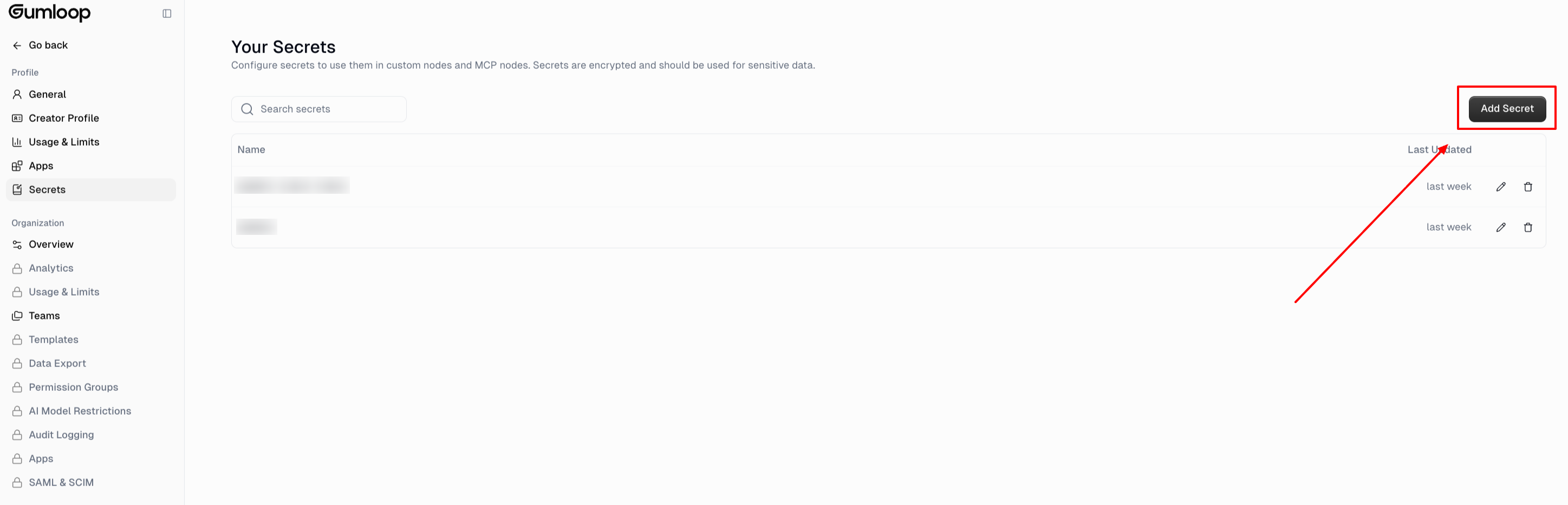
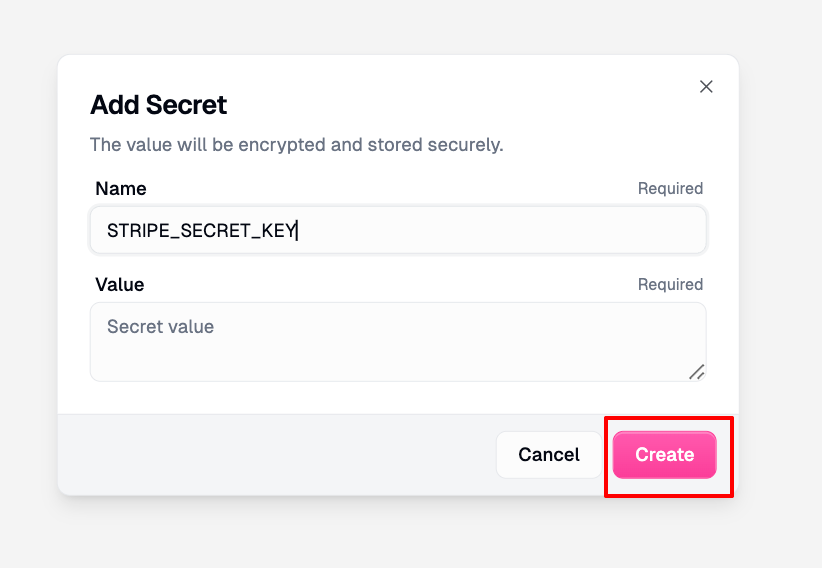
Enter a descriptive name in UPPER_SNAKE_CASE (e.g.,
STRIPE_SECRET_KEY,OPENAI_API_KEY).Paste the secret value.
Click Create.
Important: Secret values are never shown again after you save them. If you need to change a value, you must delete the secret and create a new one with the same name.
Step 2: Map the Secret to Your Custom Node
When Gummie builds a custom node that needs credentials, it automatically adds the required environment variables directly on the node. You just need to select your secret from the dropdown before running the workflow.
Open your workflow and click on the Custom Node that needs the secret.
Scroll down on the node to find the Environment variables to use section.
Click Select a variable... and select the secret you created in Step 1 from the dropdown.
(Optional) If you haven't created the secret yet, click + Create new secret at the bottom of the dropdown to add one without leaving the workflow builder.
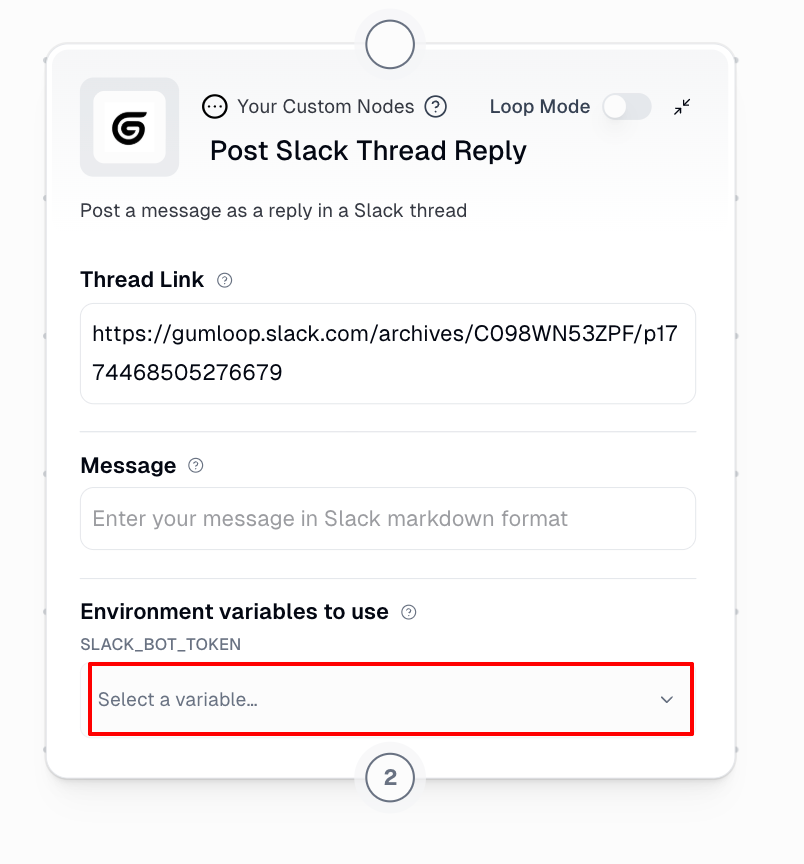
You'll see the secret name appear in the dropdown field when the mapping is complete. The node is now ready to use the secret at runtime.
What Secrets Cannot Do
Secrets are designed for a specific use case — injecting credentials into Custom Nodes. Here are the boundaries:
No team sharing: Secrets are personal to your account. There is no way to share a secret value with other team members. Each person must create and map their own secrets.
No Run Code node support: Secrets only work in Custom Nodes. The Run Code node does not support the environment variable mapping feature.
No flow-level variables: There is no way to set a secret once and reference it across multiple nodes in a workflow. Each Custom Node that needs a secret must have the secret mapped individually.
No retrieval after saving: You cannot view a secret value after creation. If you lose the original value, delete the secret and create a new one.
Related Articles
Still Need Help?
For anything else, reach out at support@gumloop.com or in the shared Slack channel.