How Do I Add Shared Team Credentials (Team Apps)?
Last updated: March 21, 2026
Team credentials (team apps) let everyone on a team use the same connected account — like a shared Salesforce login or a team Gmail — without each person needing to authenticate separately. This is useful when your organization restricts who can OAuth with external services.
Why Use Team Credentials?
In many organizations, not everyone can connect directly to external services. Common examples:
Your IT admin restricts Salesforce OAuth to certain roles
Microsoft 365 requires tenant-wide admin consent before anyone can connect
Your team uses a shared service account (e.g.,
marketing@company.com) instead of individual logins
In these cases, an admin can connect the service once as a team app, and every team member can use that shared credential in their agents and workflows — no individual setup needed.
How to Add a Team App
Option 1: Right-Click from the Sidebar (Fastest)
Go to the Home page
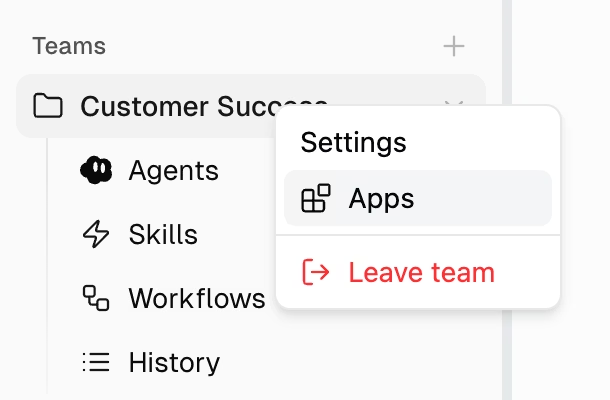
Right-click your team name in the sidebar
Select Apps
Click Connect New App
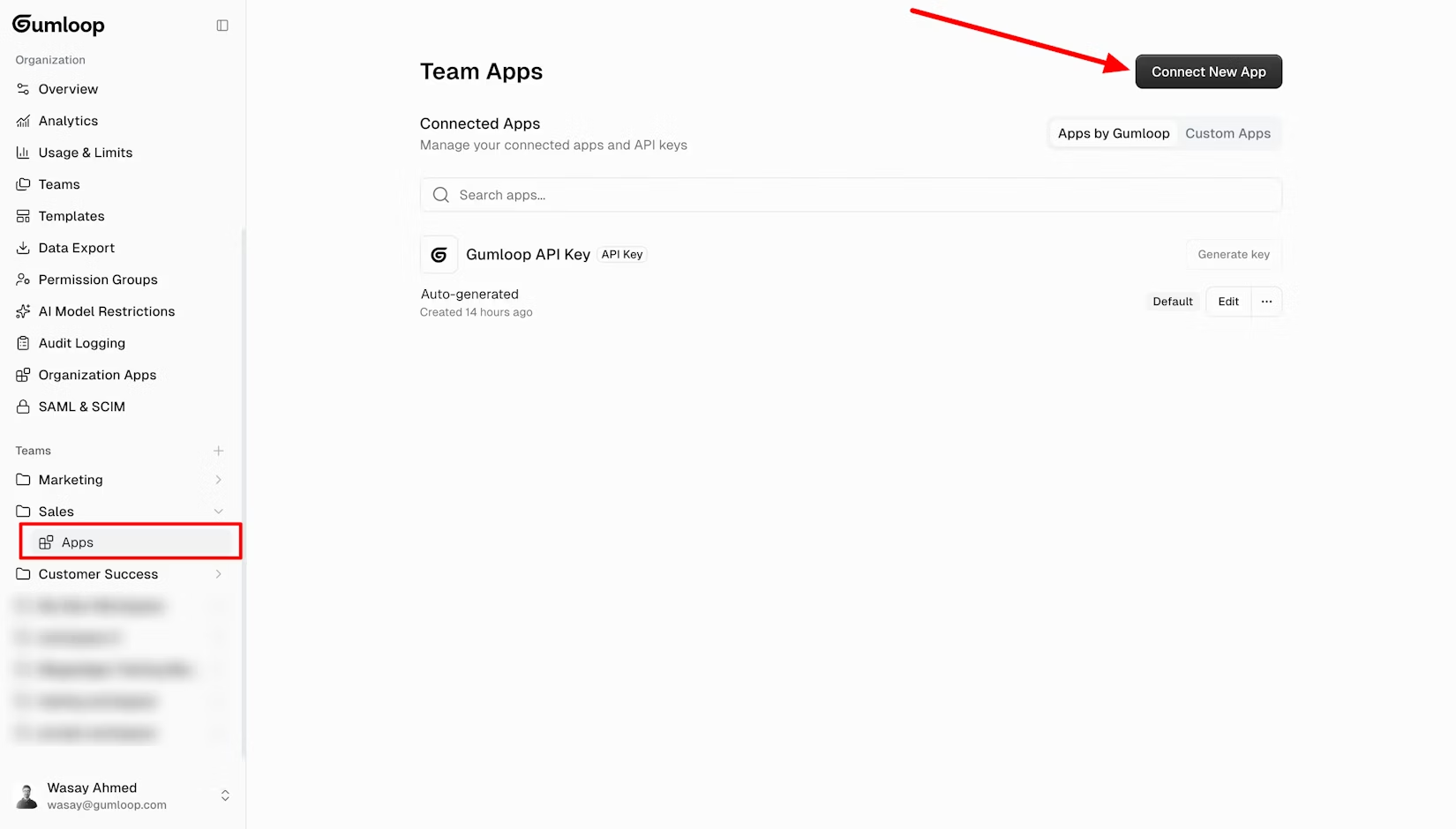
Choose the service (Gmail, Salesforce, Slack, etc.) and authenticate
Option 2: From Organization Settings
Go to Settings → Teams
Click on the team you want to manage
Select Apps in the sidebar
Click Connect New App
Who Can Use Team Credentials?
All members of that team can use the shared credential in agents and workflows that live in the team.
Team credentials are not available in personal spaces — the agent or workflow must be inside the team.
Team apps are scoped to a single team. If you have multiple teams that need the same service, you'll need to connect it in each team separately.
Good to Know
Connecting a team app does not replace anyone's personal credentials. Personal apps remain private and unaffected.
If a team credential expires or needs reauthentication, any team admin can go to the team's Apps page and click Reauthenticate.
Related Articles & Docs
How Do I Let Someone Else Edit My Agent or Workflow? — moving agents to a team for shared editing
Apps & Credentials — full reference for personal and team apps
Organization and Teams — creating teams and adding members
Still Need Help?
If this didn't resolve your issue, reach out to support at support@gumloop.com.