How Do I Make My Agent Public (Anyone With a Link)?
Last updated: April 7, 2026
To make your agent accessible to anyone — including people without a Gumloop account — open the Share dialog, set General Access to Anyone with link, and choose a role. Anyone who has the link can then access the agent.
How to Make an Agent Public
Open the agent and click Share.
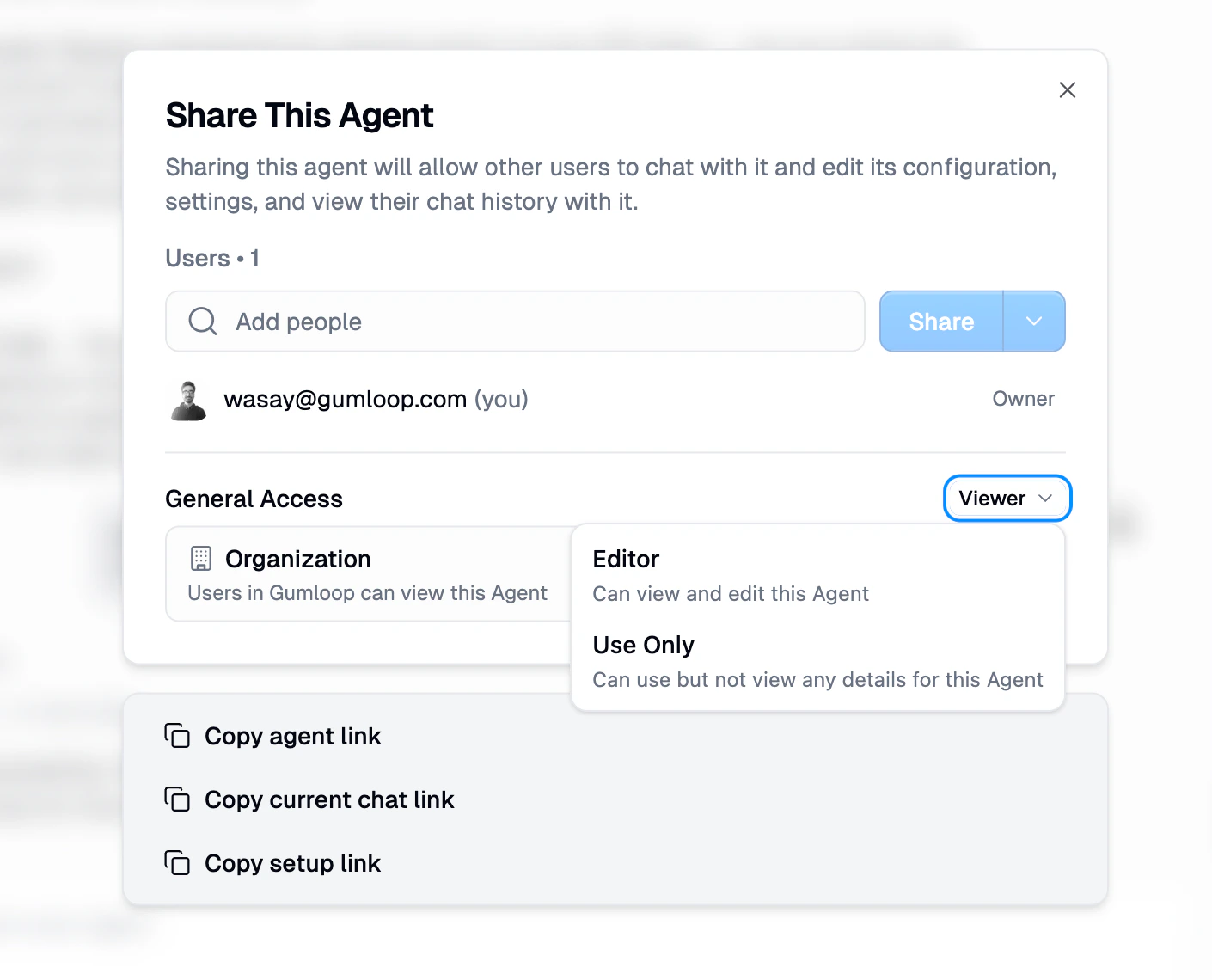
In the General Access section at the bottom, click the access level dropdown.
Select Anyone with link.
Choose the role for public users — Viewer or Use Only are the most common choices for public agents.
Copy the agent link from the Share dialog and share it wherever you like.
What Public Users Can Do
Anonymous users (not signed in) are always capped at Viewer access — regardless of the role you set. They can view the agent but cannot edit or chat (for Use Only, they must sign in).
Signed-in users get whatever role you chose in General Access (e.g., Use Only lets them chat, Viewer lets them see configuration).
Direct user grants still take priority. If you added someone as an Editor by email, they stay Editor regardless of the public role setting.
This Also Works for Workflows
You can set General Access to "Anyone with link" on workflows too. The available public roles for workflows are Editor and Viewer.
Workflow access and interface access are independent. Making a workflow public does not make its interface public, and vice versa.
Good to Know
Enterprise restriction: Organization admins on Enterprise plans can disable the "Anyone with link" option via User Groups. If you don't see the option, your admin may have restricted public sharing.
To stop public access, change General Access back to Restricted, Team, or Organization. Existing direct grants (added by email) are not affected.
Related Docs
Still Need Help?
If this didn't resolve your issue, reach out to support at support@gumloop.com.