How to Upload Files (PDF, Excel, CSV) to an Agent or Workflow
Last updated: March 26, 2026
You can upload files directly in agent chat, through a workflow's file-handling nodes, or via the API. For agents, just attach the file in the chat window — the agent reads it automatically.
Upload a File in Agent Chat
This is the fastest way to get a file into Gumloop.
Open your agent chat.
Click the attachment icon (paperclip) at the bottom of the chat window.
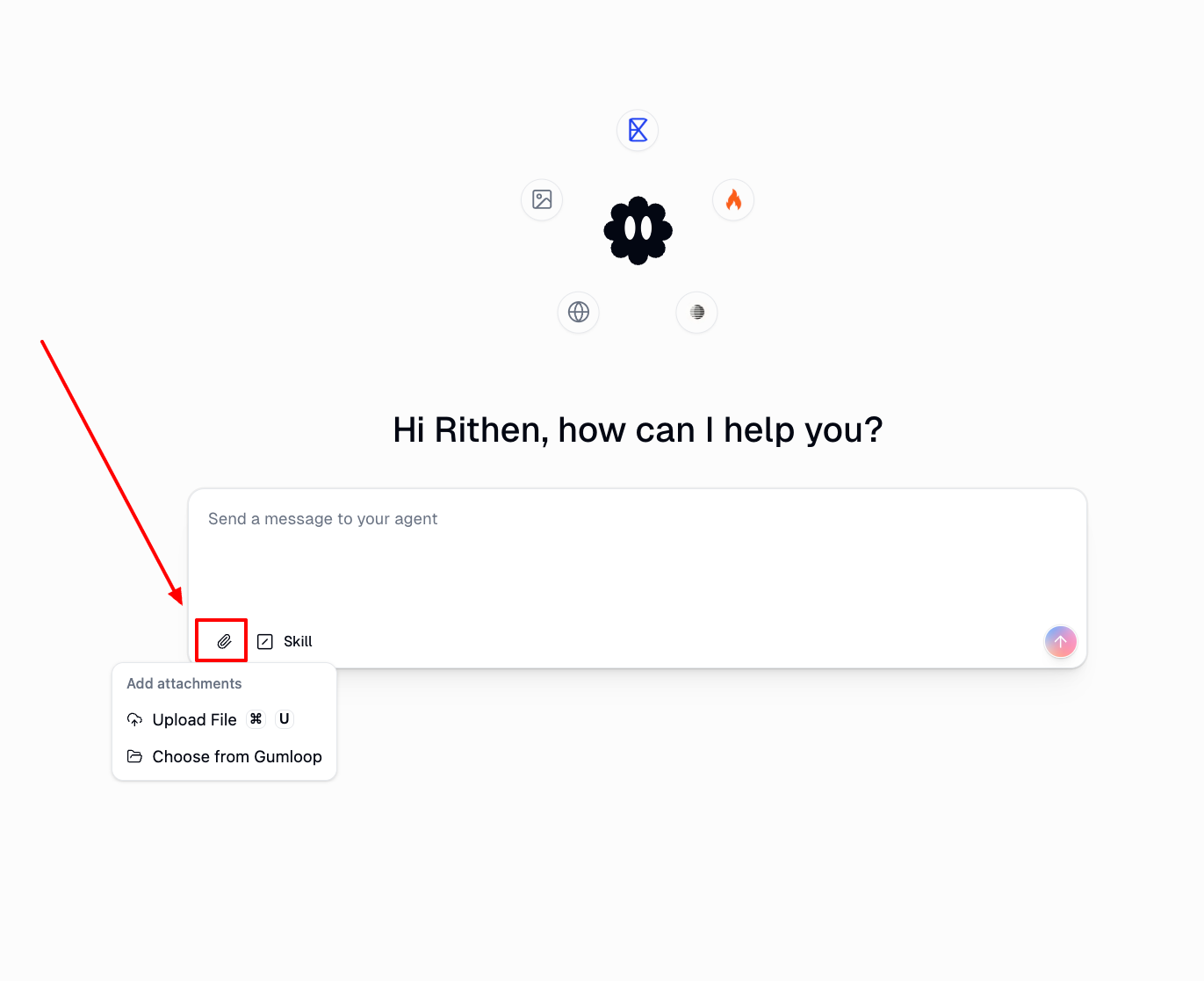
Select your file and send your message.
The agent automatically reads text-based files (PDF, Word, Excel, CSV, TXT, JSON, HTML) and parses it.
Large files (over ~32 MB)
Files above roughly 32 MB may exceed the LLM context limit. Instead of uploading directly:
Upload the file to Google Drive.
Add the Google Drive app under your agent's tools (if not already added).
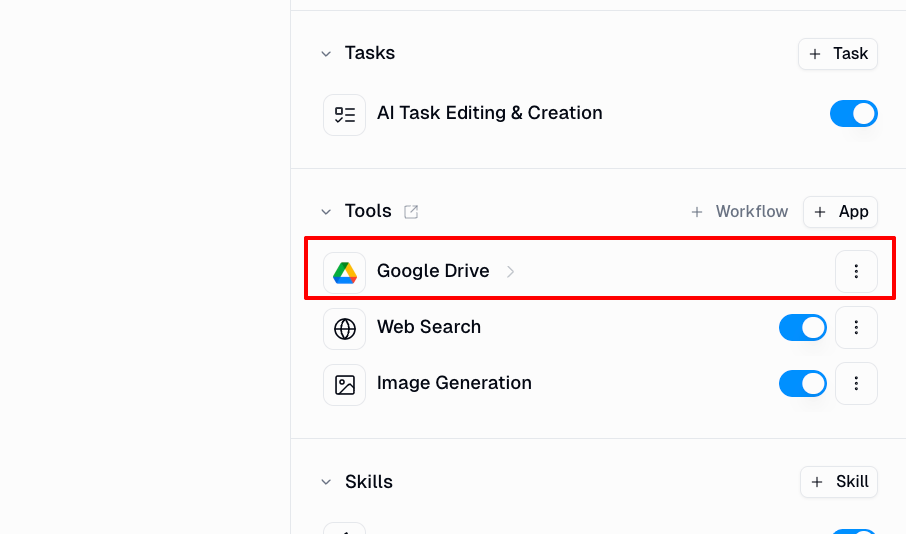
Paste the Drive link in the agent chat.
The agent will read the file from Drive without hitting the context limit. For a full walkthrough, see My Agent Can't Handle Large Files — What's the Workaround?
When your agent processes a file in chat, the contents are loaded directly into the LLM's context window (limit: ~32 MB). Files the agent fetches via tools into its Code Sandbox are processed as code, not context, and can be up to 300 MB.
For bulk file processing, upload your files to a Google Drive folder and send the folder link in agent chat.
Upload a File in a Workflow
To use a file in a workflow, upload it to a file-handling node:
Open your workflow in the editor.
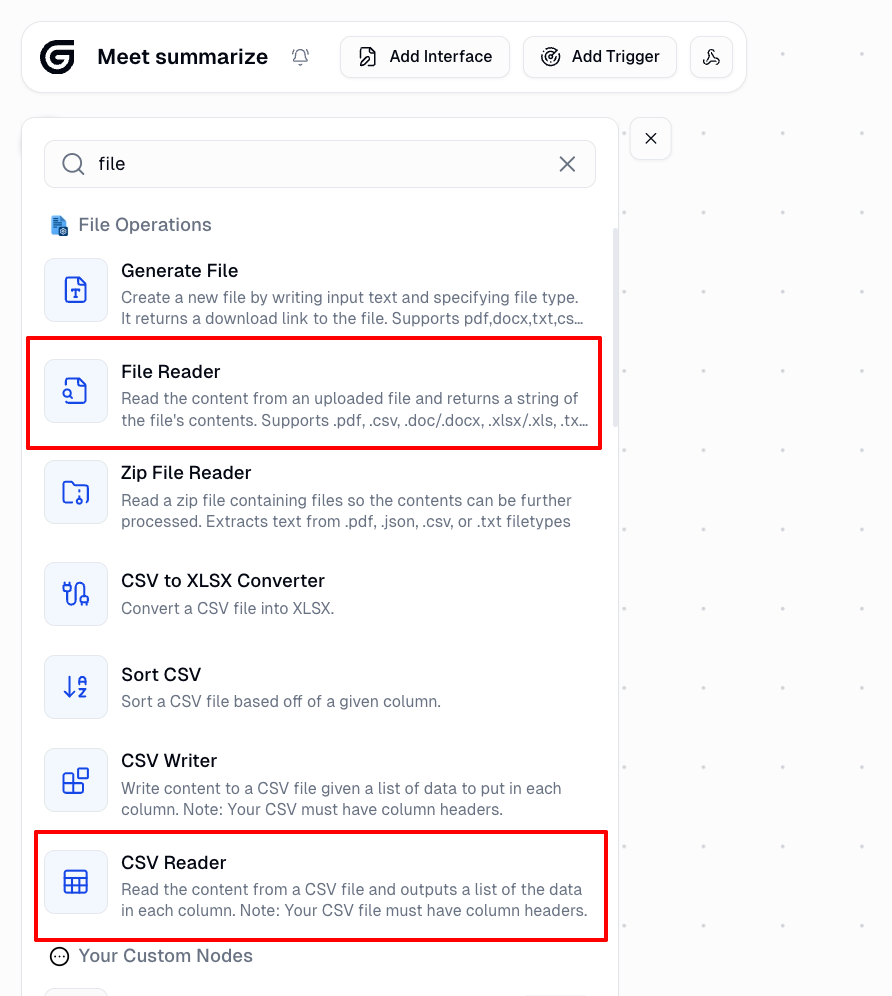
Click the folder icon on any file-handling node (File Reader, PDF Reader, CSV Reader, etc.).
In the file picker, click Pick a File to Upload.
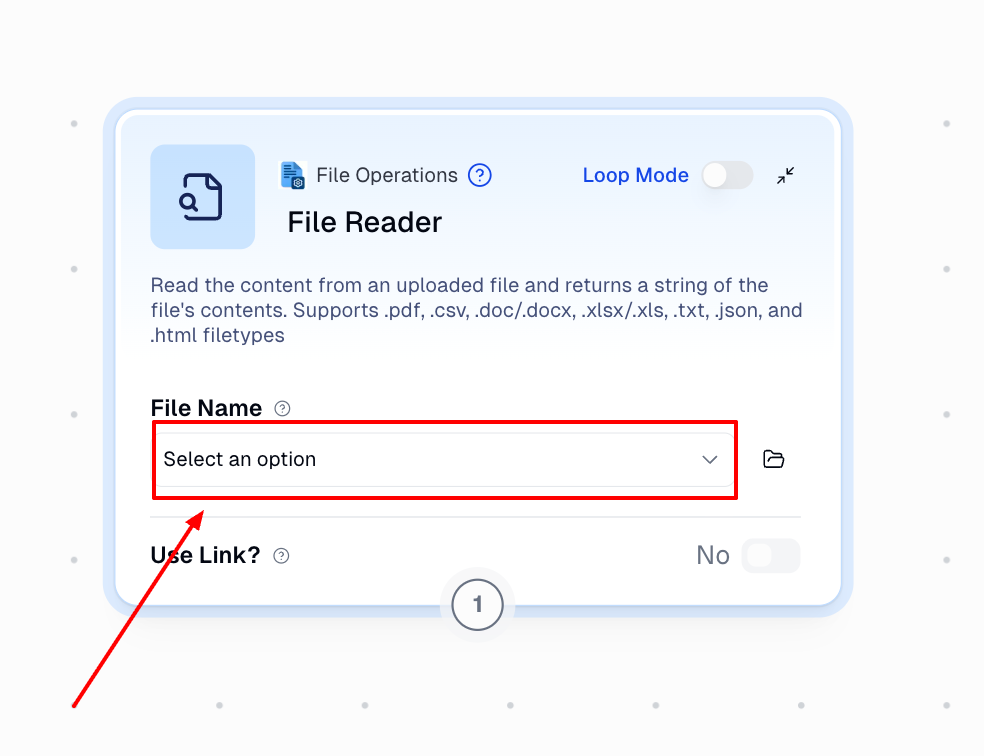
Select your file.
The file is stored in your Gumloop file storage and available for all future runs.
File-handling nodes
Node | Supports | Notes |
File Reader | PDF, Word, Excel, CSV, TXT, HTML, JSON | Outputs plain text content |
PDF Reader | PDF only | Three modes: Standard (free), Advanced (+5 credits), OCR (2–20 credits) for scanned docs |
CSV Reader | CSV only | Outputs each column as a list; column headers must match exactly |
Google Drive File Reader | Any Drive file | Outputs a file object — pass directly to File Reader or PDF Reader |
Google Drive Folder Reader | Any Drive folder | Outputs a list of files; ideal for bulk processing |
Upload Files via API
Use the API to upload files programmatically before triggering a workflow run.
Single file:
POST https://api.gumloop.com/api/v1/upload_fileMultiple files:
POST https://api.gumloop.com/api/v1/upload_filesFull reference: File Operations — Upload Files
Supported File Types and Size Limits
Supported types: .csv, .pdf, .doc, .docx, .xlsx, .xls, .json, .txt, .html
Upload method | Limit |
Workflow file upload | 200 MB per file |
Agent Code Sandbox | 300 MB |
Still Need Help?
Reach out at support@gumloop.com or in the shared Slack channel.