How to Set Up and Use Triggers in Gumloop Agents
Last updated: March 24, 2026
Triggers let your agent run automatically -- on a schedule, when something happens in a connected app. Set them up from the Tasks section of your agent's configuration page by clicking + Task.
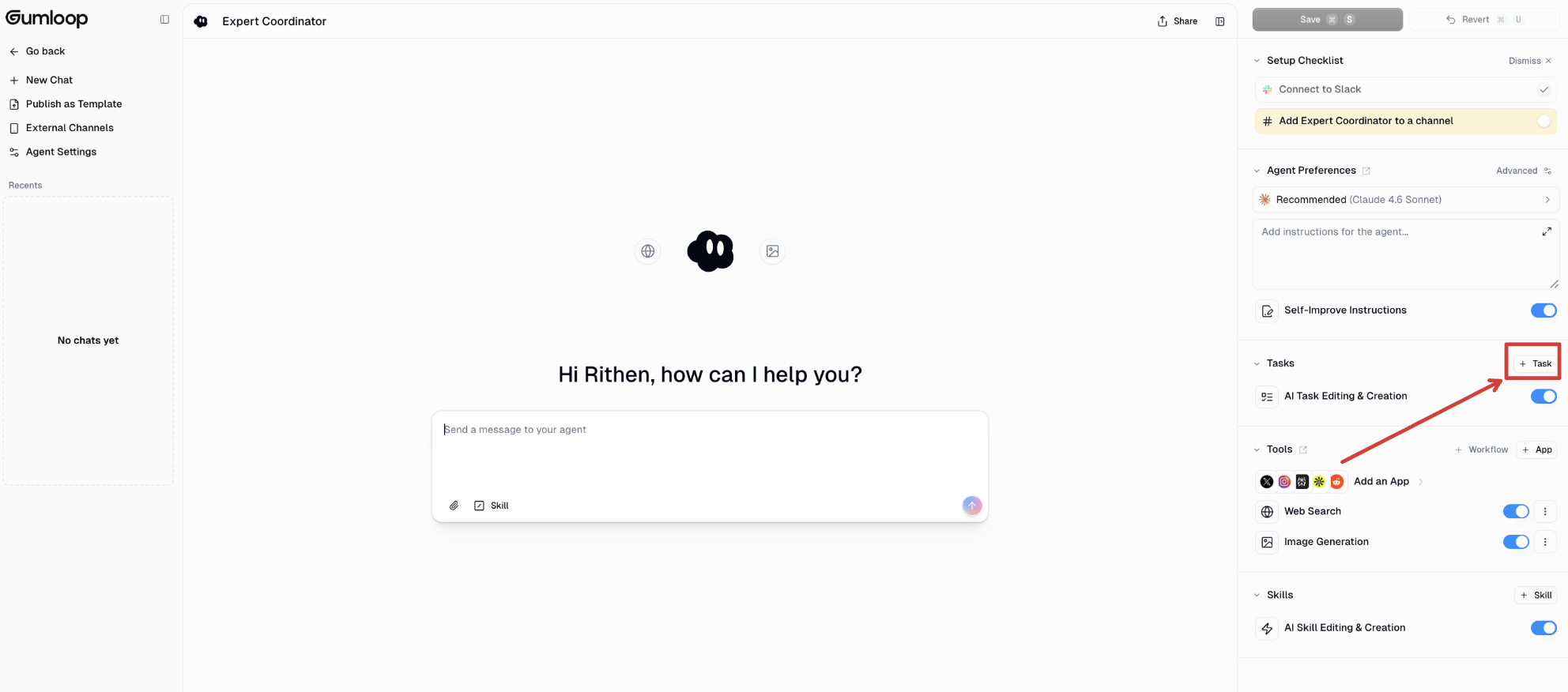
Scheduled Tasks
Run your agent on a recurring schedule or at a specific future time.
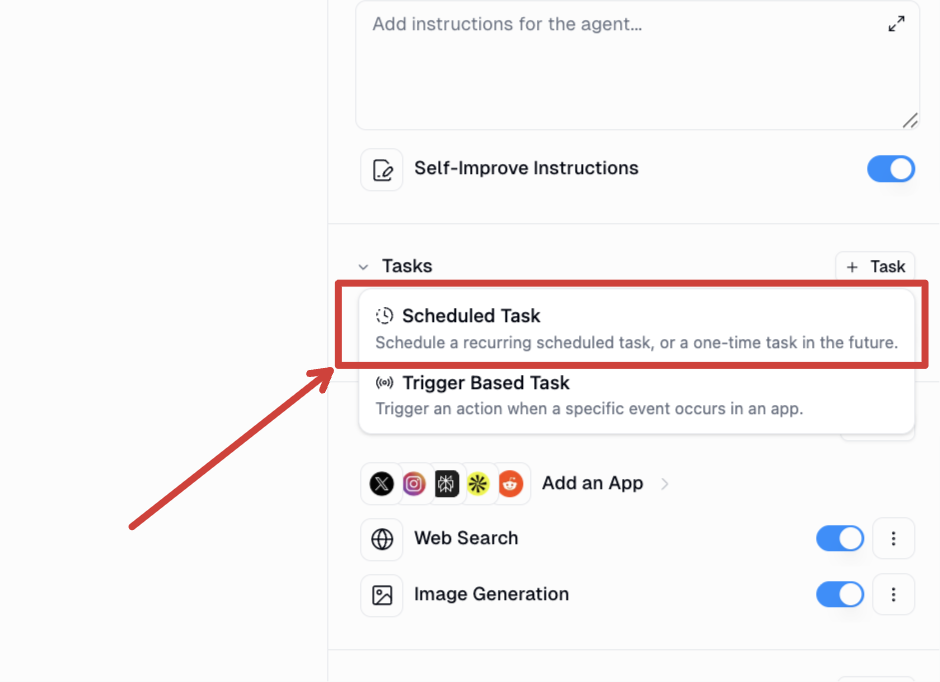
Go to your agent > Tasks > + Task > Scheduled Task
Choose a type: Recurring (runs on a repeating schedule until you pause or delete it) or One-time (runs once and is automatically deleted after).
Enter a Name, set a Schedule (type plain English -- e.g. "every weekday at 9am" -- and the cron is generated automatically), and confirm the Timezone
Write a Prompt -- this is what your agent receives when the task fires
Click Create
Recurring tasks run until you pause or delete them. One-time tasks stop automatically after they run.
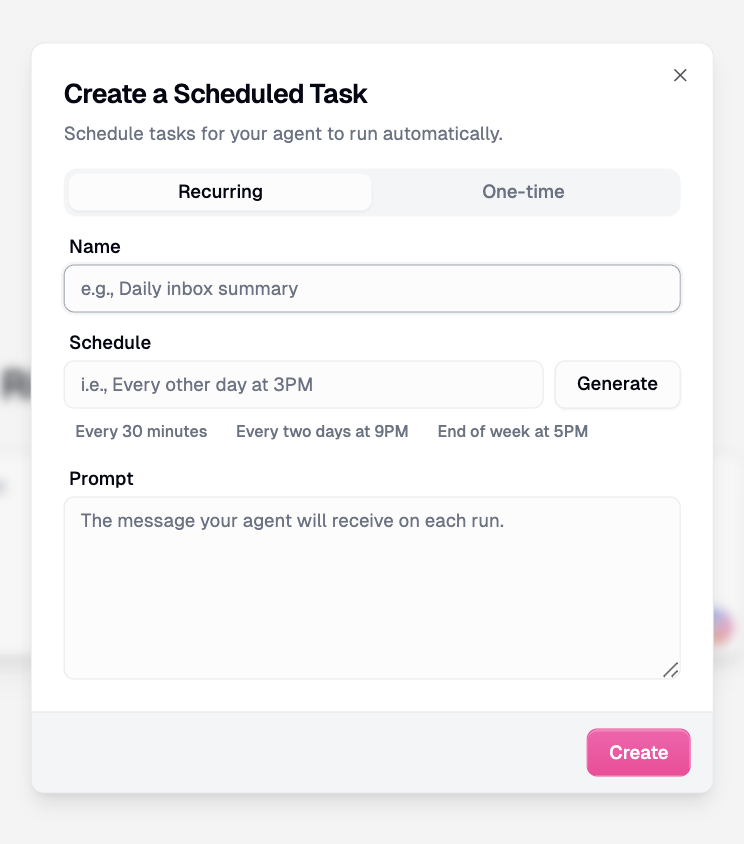
What goes in the prompt? Think of it like a message you're sending the agent at the moment the task fires -- not instructions about how it should behave (that's your system prompt), but what you want it to do right now. For example: "Pull last week's Salesforce pipeline report and post a summary to #sales in Slack." The agent already knows how to behave from its system prompt and skills -- this just tells it what to act on.
Trigger-Based Tasks
Fire your agent when something happens in a connected app -- a new email, Slack message, Google Sheets row, and more.
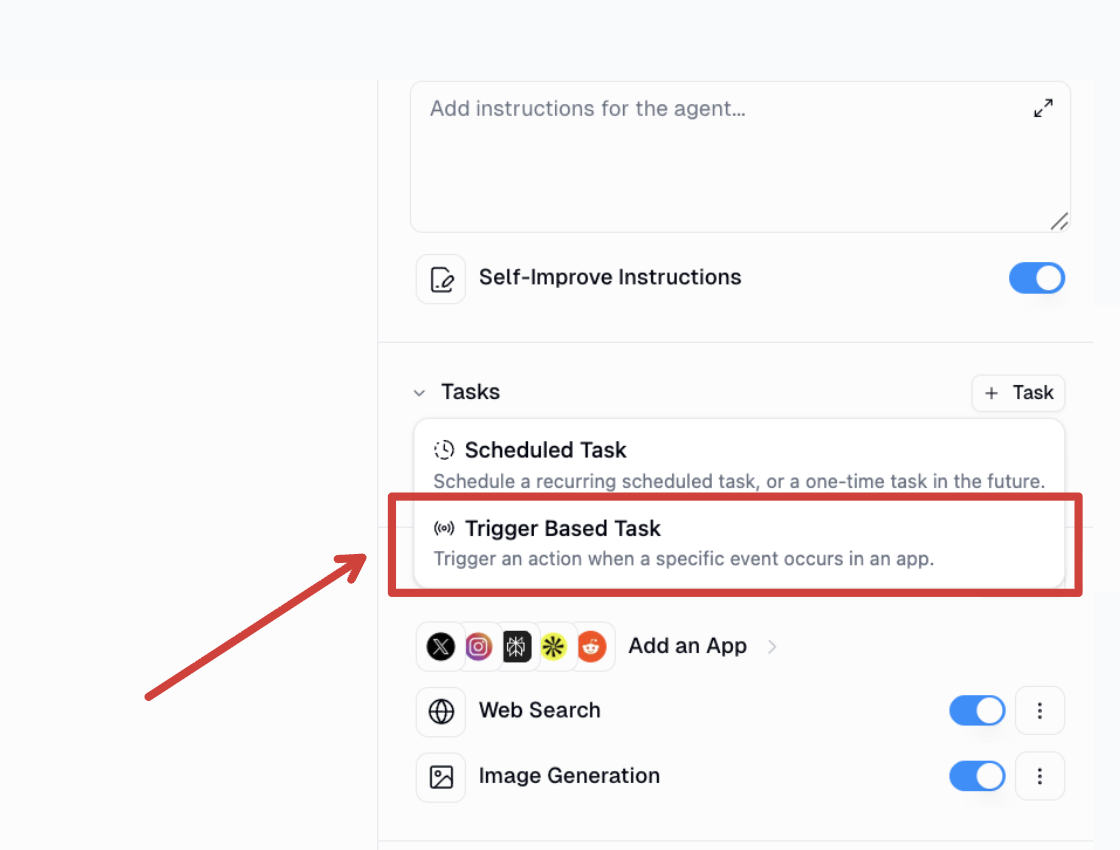
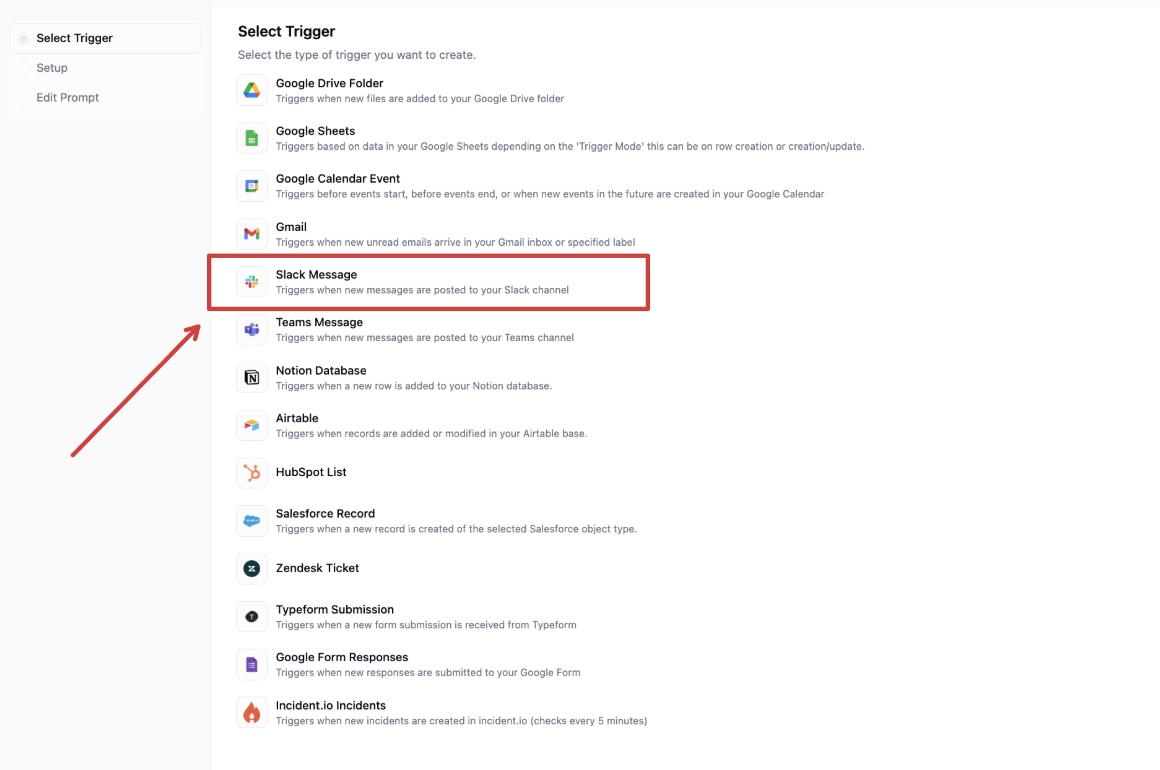
Go to your agent > Tasks > + Task > Trigger-Based Task
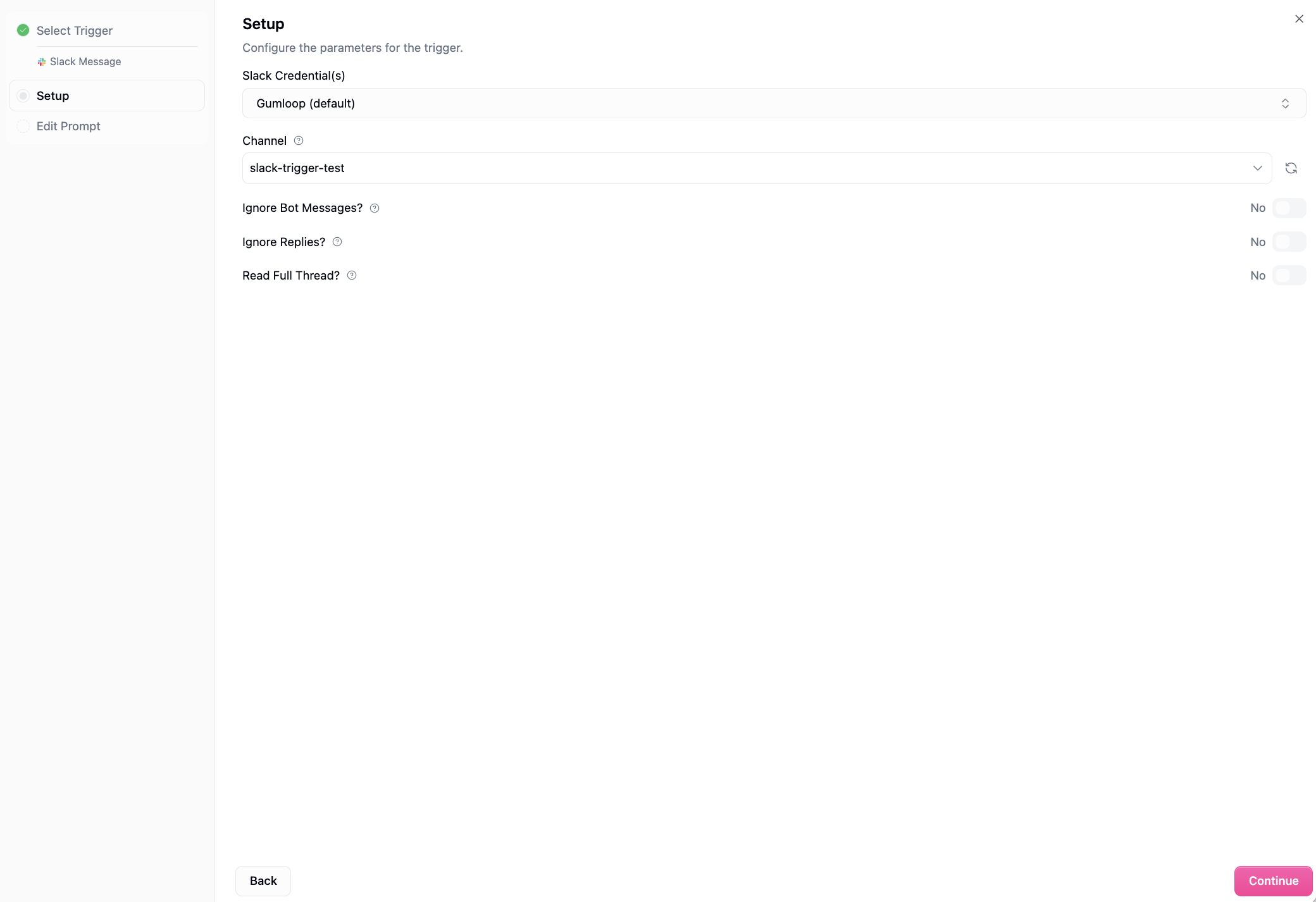
Select your integration, connect credentials, and configure the settings
Write a prompt template using variables like
{Message}or{Email Body}to pass event data to your agentClick Create
Real-time integrations: Gmail, Slack, Microsoft Teams, Google Drive, Google Forms, Typeform, Zendesk
Polling integrations (~60s): Google Sheets, Google Calendar, Notion, Airtable, HubSpot, incident.io
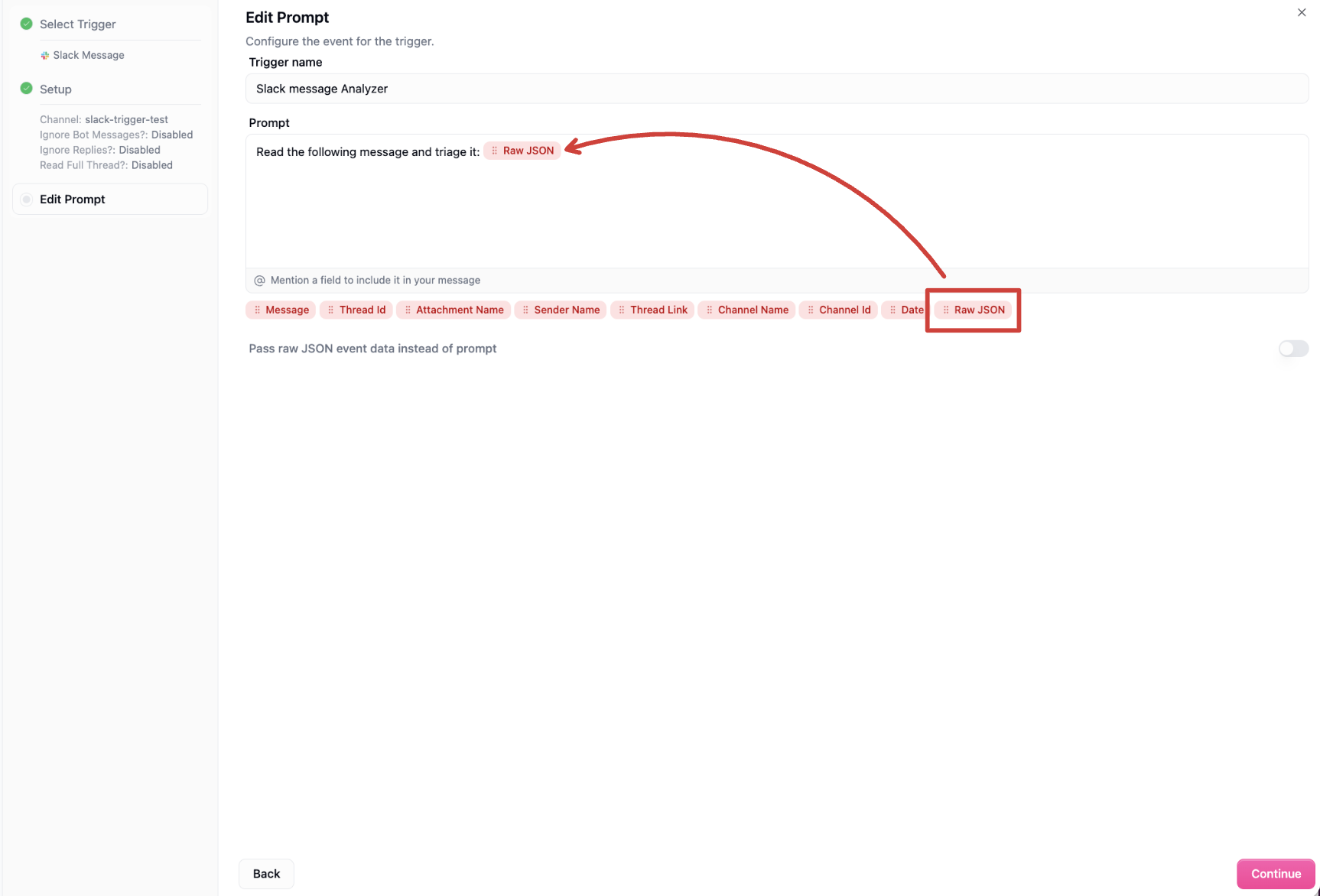
Writing your prompt template: Your prompt can be a mix of your own instructions and event data from the trigger. For example: "A new message just came in from {Sender Name}: {Message}. If it mentions a bug, create a Linear ticket and reply in the thread." When you select an integration, available variables show up as badges -- drag them into your prompt to insert them. If you want the agent to receive everything and decide what matters, drag in the Pass Raw Data badge and it will receive the full event payload as JSON.
Letting Your Agent Schedule Itself
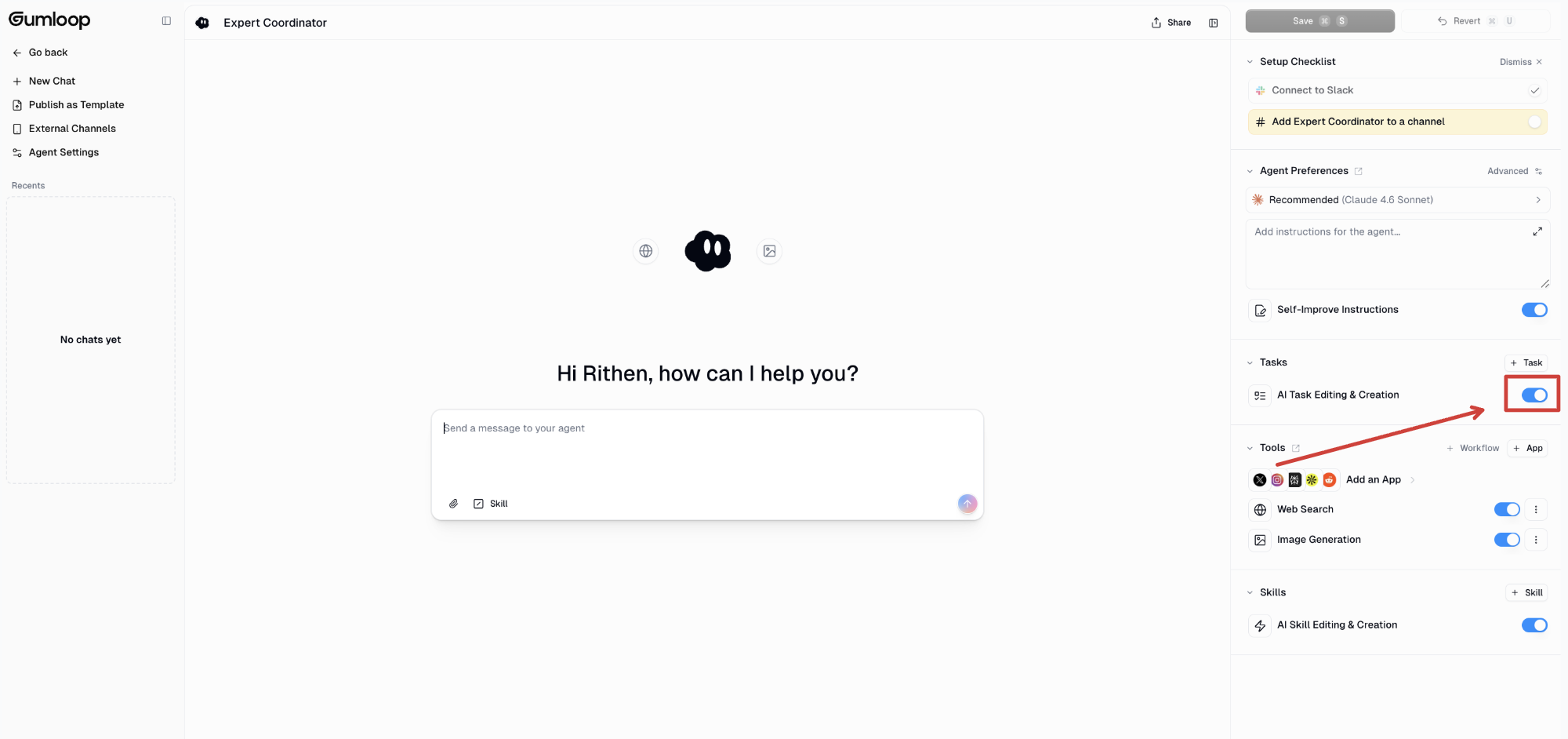
Instead of setting up scheduled tasks manually, you can just tell your agent directly. From a conversation or from Slack, say something like "run this every Monday at 9am" and the agent will create the task for you.
To allow this, go to your agent > Tasks and enable AI Task Editing & Creation. Without it, the agent won't be able to create or modify tasks when you ask.
Related Docs
Agent Triggers documentation -- full reference for all trigger types and integrations
Using Your Agent in Slack -- how to deploy and interact with your agent from Slack
Start Agent API -- trigger your agent programmatically
For anything else, reach out to us at support@gumloop.com or in the shared Slack channel and our team will help you.