My AI Trigger Never Fires — How to Debug It
Last updated: April 1, 2026
You created an AI trigger, it shows as active, but nothing ever happens. This article walks through every reason that can happen — and how to fix each one, starting with the most common cause.
The Most Common Reason: You Haven't Waited for the Baseline
This is the #1 cause. AI triggers do not fire on their first check.
The first time your trigger runs, it looks at the current state of your data — your latest emails, your open deals, your Slack messages — and saves all of it as the baseline. It doesn't fire because it doesn't know what's "new" yet. Everything it sees is "existing."
From the second check onward, the trigger compares new data against that baseline and fires only when something genuinely new appears.
What to do
Click Test Now once on the trigger. The result will be Empty — that's the baseline being captured. This is correct.
Go create something new in the app you're monitoring (send yourself an email, add a Salesforce record, post a Slack message).
Click Test Now again. If the trigger is working, this will return Fired with the new item.
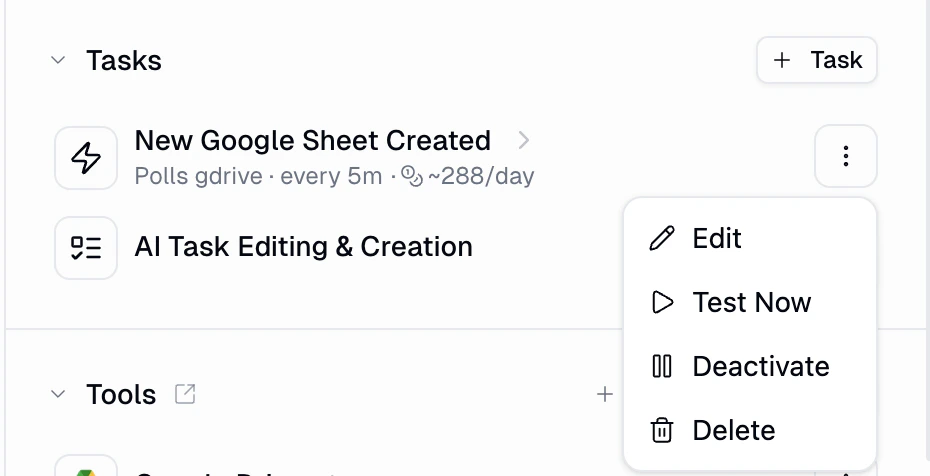
If Test Now returns Fired on the second try, your trigger is working. Just wait for the next scheduled check — it will fire on its own when new data appears.
Step-by-Step Debugging If That Wasn't It
If the baseline isn't the issue, work through these checks in order. Each one is a common cause, and they're sorted from most likely to least likely.
1. Is the trigger actually active?
Go to your agent's Tasks section. Find the trigger and check its status.
If it says inactive or OFF, the trigger was deactivated — either by you, by the circuit breaker (20+ fires in 10 minutes), or because 3 consecutive checks failed.
Fix: Re-enable it from the three-dot menu. If it was deactivated automatically, fix the underlying issue first (see sections below).
2. Is the poll frequency what you expect?
Check the trigger's subtitle in the Tasks section — it shows the poll frequency (e.g., "every 5 minutes," "every hour," "every day").
If the trigger is set to check every hour or every day, it may simply not have run yet.
If the agent chose a frequency you didn't expect, ask it to change it: "Change the [trigger name] to check every 5 minutes."
3. Are your credentials still connected?
If the credentials for one of the trigger's apps expired or were disconnected, the trigger will fail silently — it shows as active but every check errors out.
Go to your Apps page and verify each service the trigger uses is still connected.
Go to your agent's Tools section and check that each integration is added and authenticated.
If a credential looks stale, disconnect and reconnect it.
After reconnecting, click Test Now on the trigger to verify it can reach the service.
4. Does the trigger condition actually match anything?
The trigger is only as good as the condition you described. If you asked for something very specific — like "emails from john@specificdomain.com with the subject line 'Q4 Report'" — and no email like that has arrived since the baseline was captured, the trigger has nothing to fire on.
Test it: Create data that exactly matches your condition, then click Test Now.
If it still doesn't fire, the agent may have interpreted your condition differently than you intended. Ask your agent: "What exactly does the [trigger name] trigger check for?"
If the logic is wrong, delete the trigger and describe what you want again more explicitly.
5. Is the trigger erroring on every check?
Click Test Now. If the result is Error with a message, that tells you what's wrong:
Error you see | What it means | What to do |
Auth / credential error | The app's credentials are expired or revoked | Reconnect the credential on your Apps page |
API error / service unavailable | The external service is down or returning errors | Check if the service is operational, then try again later |
Timeout | The check took longer than 10 minutes | Ask your agent to simplify the trigger or increase the poll frequency |
Code / runtime error | The trigger script has a bug | Delete the trigger and ask your agent to rebuild it |
6. Was the trigger auto-deactivated?
Triggers are automatically deactivated in two situations:
3 consecutive check failures. If the trigger errors out 3 times in a row (credential issues, API errors, timeouts), it gets shut off to protect your credits.
Circuit breaker. If the trigger fired more than 20 times in 10 minutes — usually because of a deduplication bug — the system deactivates it.
In both cases, the trigger will appear as inactive in your Tasks section. Fix the underlying issue, then re-enable it.
7. Has nothing actually changed in the monitored app?
This sounds obvious, but it's worth confirming. If you're monitoring a CRM for new leads and no new leads have been created since the baseline, the trigger is working correctly — it just has nothing to fire on.
Create a test record and click Test Now to confirm.
Quick Debugging Checklist
Check | Where to look |
Trigger is active | Agent → Tasks section |
Baseline has been captured | Click Test Now once, then create new data and Test Now again |
Poll frequency is reasonable | Trigger subtitle in Tasks |
Credentials are connected | Apps page + agent's Tools section |
Condition matches real data | Create matching test data → Test Now |
No errors on check | Test Now → look for Error status |
Not auto-deactivated | Tasks section → check if inactive |
Still Need Help?
If you've gone through every step above and your trigger still isn't firing, reach out to support at support@gumloop.com. Include which agent the trigger is on and what the trigger is supposed to do — that helps us debug faster.
Related Docs
Create Triggers With AI — full feature reference with examples, costs, and limits.
How Do AI Trigger Polling and State Management Work? — how polling, baselines, and state tracking work behind the scenes.
How to Set Up and Use Triggers in Gumloop Agents — step-by-step setup guide.
How to Stop or Disable a Scheduled Trigger — pausing and deleting triggers.