How Do I Make My Agent Delete Slack Messages It Posted by Mistake?
Last updated: June 3, 2026
Your agent can delete Slack messages it posted itself. Enable the Delete Slack Message tool on the agent, then prompt it in the same chat with the links to the messages you want removed. It can only delete its own messages, not anyone else's.
Before You Start
Your agent needs Slack connected as a tool. If it isn't, see How to Give Your Agent Access to an Integration.
The Delete Slack Message tool must be enabled on the Slack integration for that agent. It is one of the individual tools you can toggle on or off.
An agent (or bot) can only delete messages it posted itself — it cannot delete messages sent by people or other apps.
How to Delete the Messages
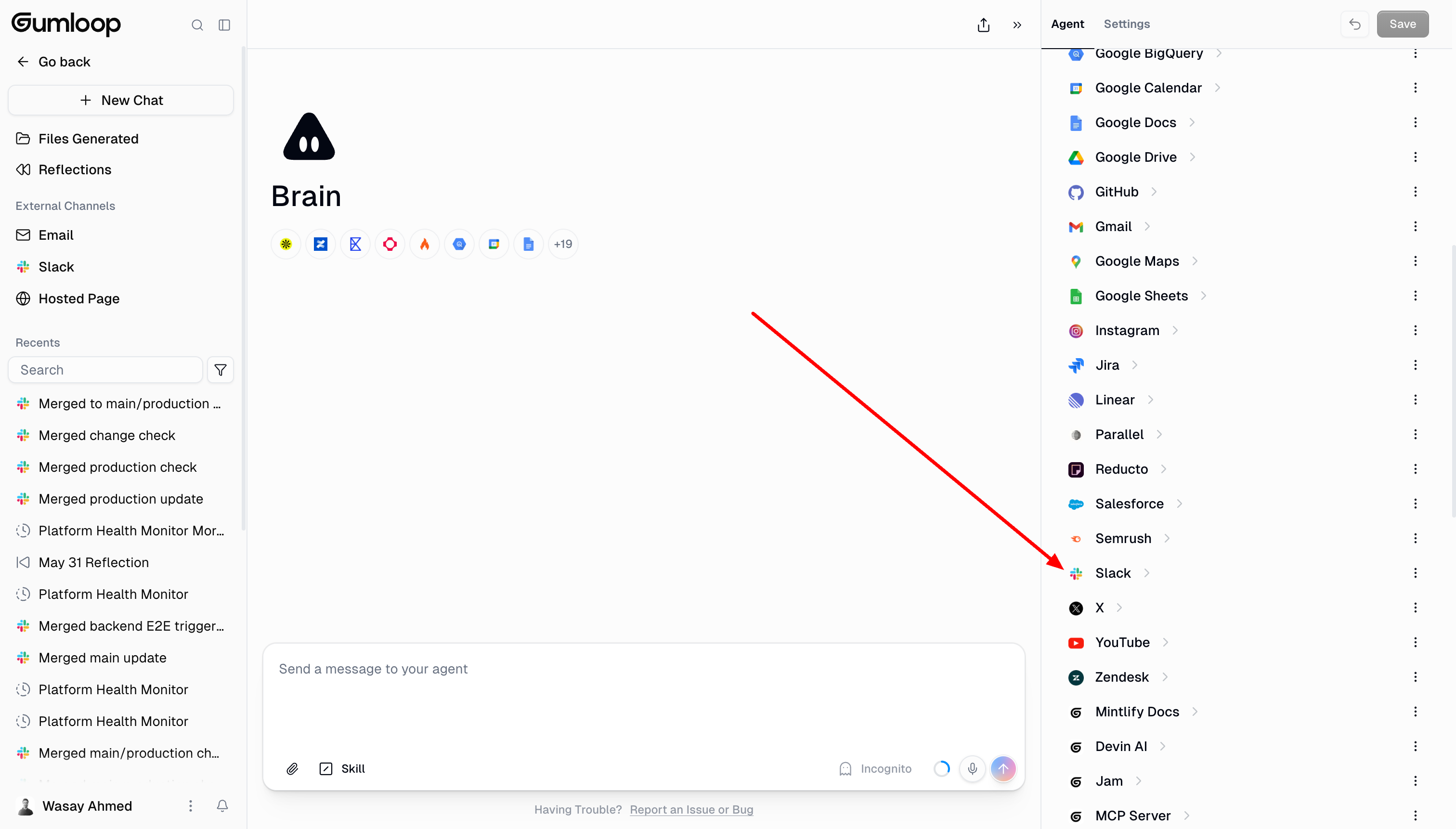
Open the agent and click the Slack integration in its tools list.
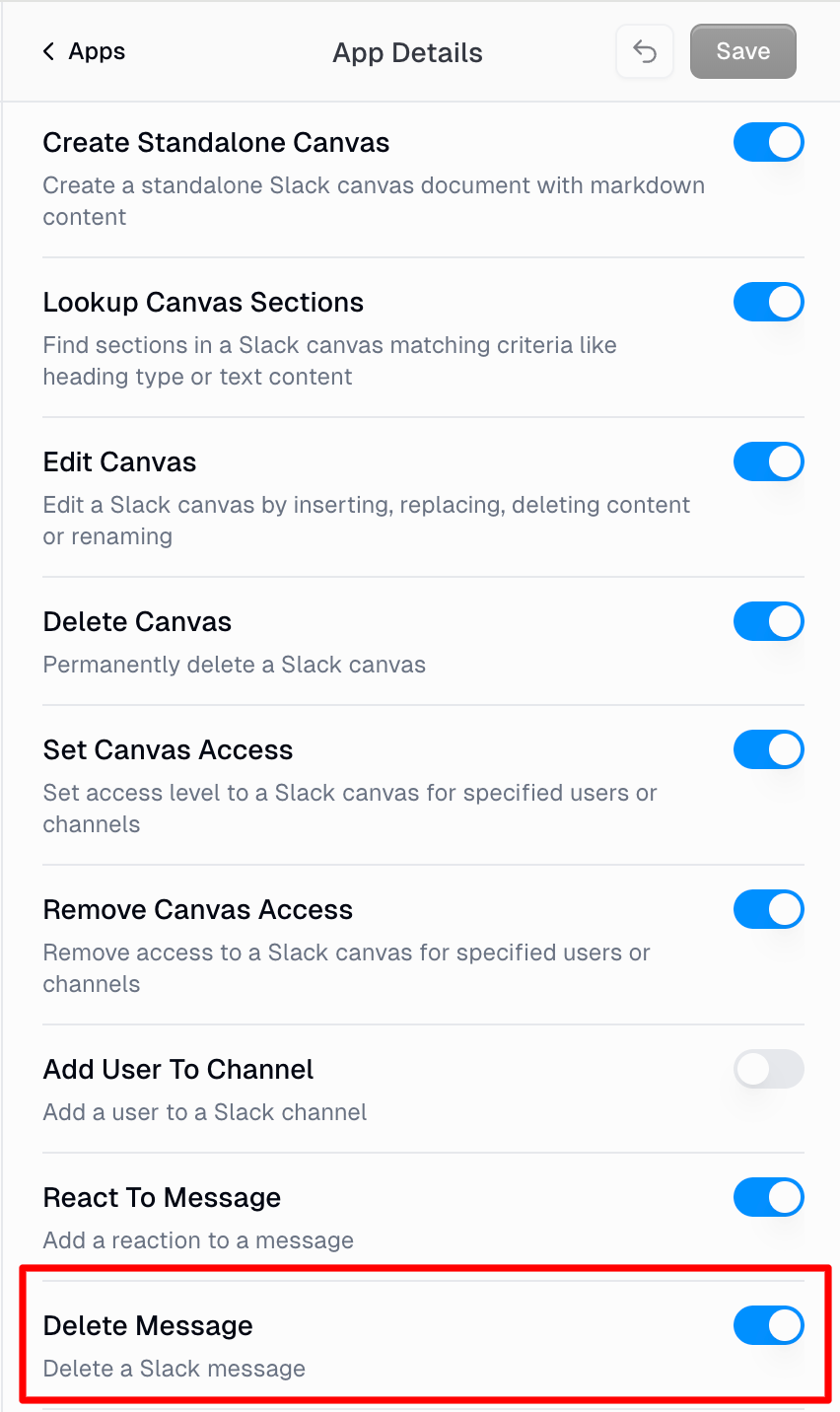
Make sure the Delete Slack Message tool is toggled on. (See How to Restrict Which Tools an Integration Can Use in Your Agent for where these toggles live.)
In a chat with that same agent, paste the link(s) to the message or thread and ask it to delete them.
Example prompts you can try right now:
"Delete this Slack message you posted: [paste message link]"
"Here are the thread links to messages you sent by mistake — please delete each one: [paste links]"
To get a message link in Slack, hover over the message, click the ⋮ (more actions) menu, and choose Copy link.
Why You Might See cant_delete_message
If your agent reports a cant_delete_message error from chat.delete, the most common cause is that the Delete Slack Message tool isn't enabled on the agent — enable it and try again. Slack also returns this error when:
The message was not posted by your agent (only the original sender can delete a message).
The message is too old, or your Slack workspace settings restrict who can delete messages.
Deleting a Large Number of Messages
If you ask the agent to delete many messages at once (dozens or hundreds), Slack's API may return rate-limit errors partway through. This is expected — Slack throttles bulk delete calls. Let the agent retry, or break the request into smaller batches by sending it the links in groups rather than all at once.
If You'd Rather Remove the Bot Entirely
If the goal is to stop the agent from posting in a channel at all (rather than clean up specific messages), see How Do I Remove the Gumloop Agent From a Slack Channel?
Related Docs
Still Need Help?
If this didn't resolve your issue, reach out to support at support@gumloop.com.