How to Give Your Agent Access to a Connector
Last updated: June 26, 2026
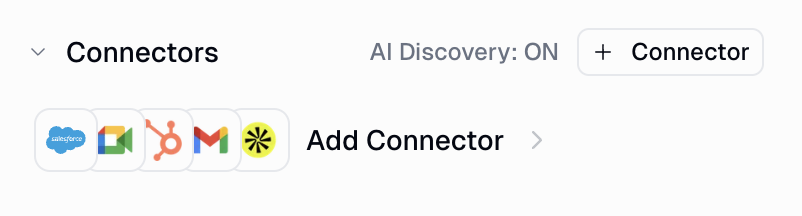
To give your agent access to a connector, open your agent, click + Connector in the Connectors section of the right-hand panel, and select the connector you want. You must both authenticate the connector and make sure it's added to your agent -- doing only one of these is not enough.
How to Add a Built-In Connector
Gumloop includes 180+ built-in connectors (Gmail, Slack, Google Sheets, Notion, Salesforce, HubSpot, Linear, and more). Follow these steps to connect one to your agent.
Open your agent.
In the right-hand panel, find the Connectors section.
Click + Connector.
In the Add Connectors dialog, search for the connector you want (for example, Gmail).
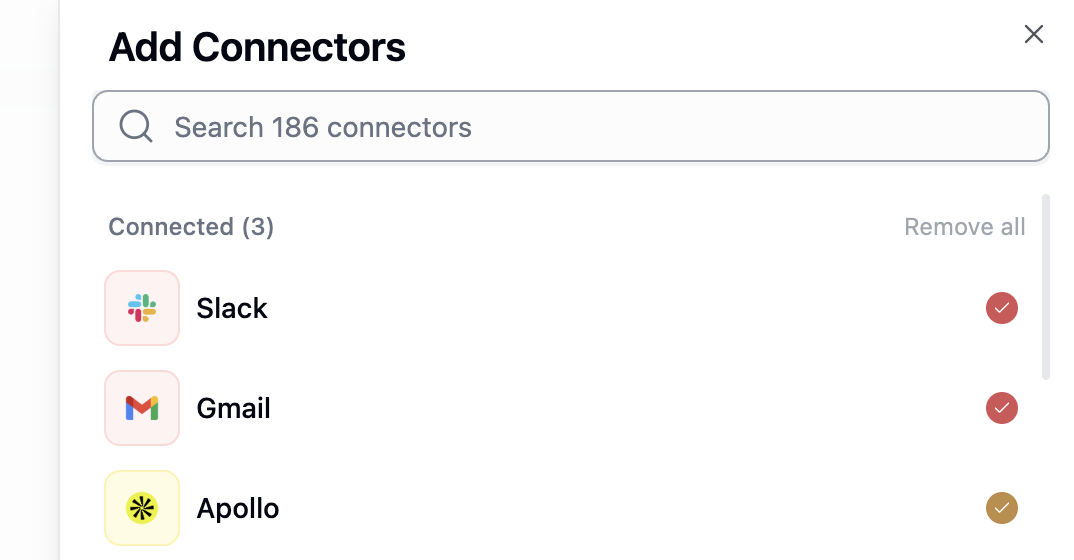
Click to connect it and authenticate with your account. A checkmark shows it's connected.
The connector now appears in your agent's Connectors list, and your agent can use it immediately.
What Types of Tools Can an Agent Use?
Tool type | How to add it | Notes |
Connectors | Click + Connector | 180+ built-in connectors (Gmail, Slack, Notion, etc.) |
Custom MCP servers | Click + Connector → find your server under the Custom tab | Connect your own MCP endpoint -- see setup guide |
Code Sandbox | Enabled by default | No setup needed -- every agent can run code out of the box |
How to Limit Which Actions a Connector Can Take
You can control each action within a connector individually. For every tool you can choose Always allow, Ask (require your approval before it runs), or Disable. For example, you might let Gmail read and search emails but require approval before sending, and disable deleting entirely.
Open your agent.
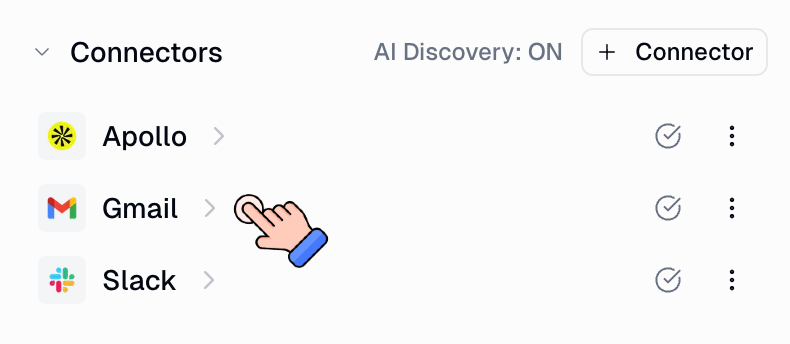
In the Connectors section of the right-hand panel, click the connector you want to configure.
Under Tool Management, set each tool to Always allow, Ask, or Disable.
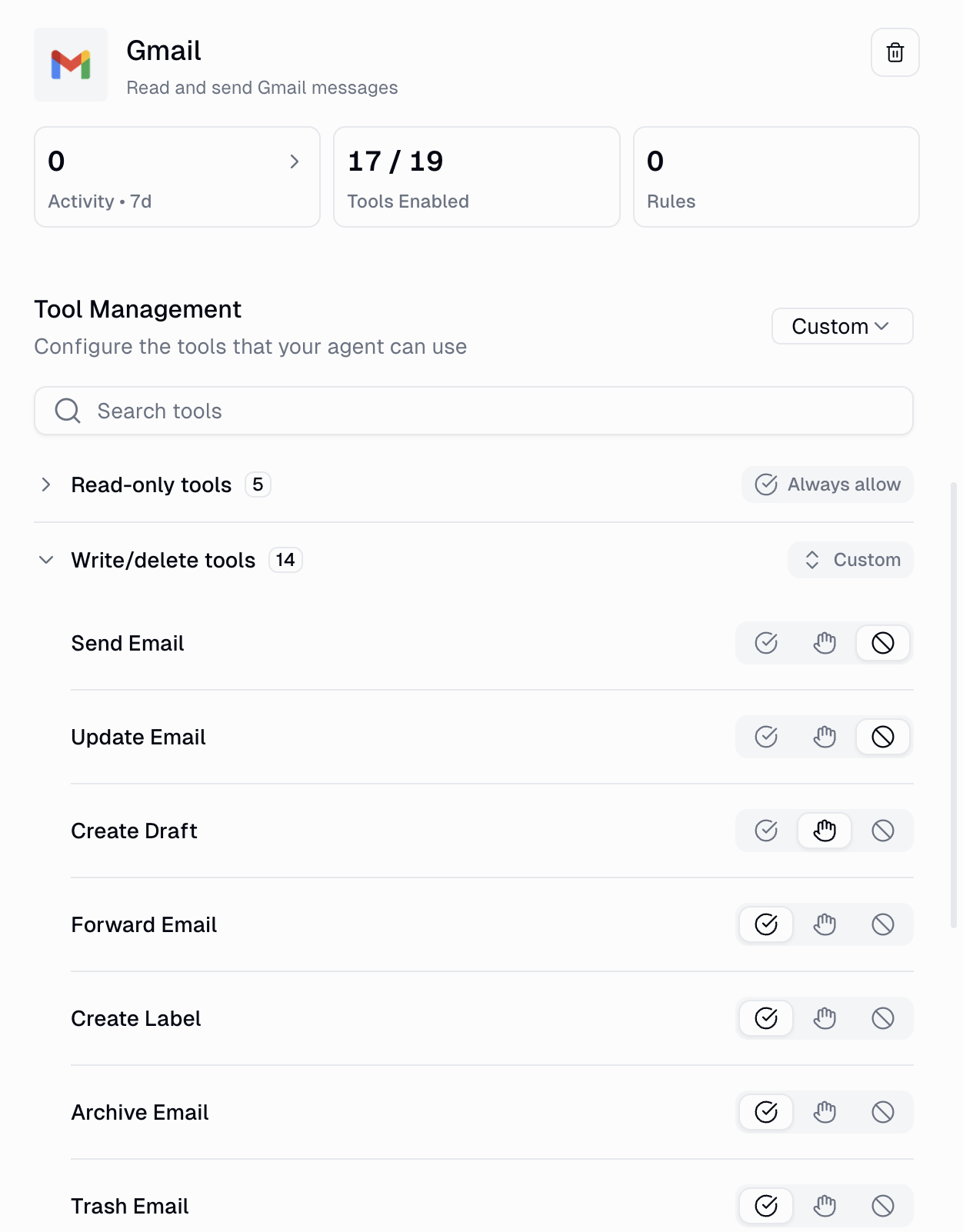
Only the tools you leave enabled (Always allow or Ask) will be available to the agent.
Tip: While you're still testing your agent, set destructive actions (sending, deleting, updating) to Ask or Disable. For more on approvals, see How Do I Make My Agent Ask for Approval Before Taking Actions?
Related Articles
For anything else, reach out at support@gumloop.com or in the shared Slack channel.