How to Set Up a Scheduled Trigger in Gumloop Workflows
Last updated: March 25, 2026
To run a workflow on a recurring schedule, add a Time Trigger to your workflow, configure the schedule using natural language or a cron expression, and activate it. Your workflow will then run automatically at the times you specify.
Setting Up a Scheduled Trigger
Open your workflow in the Workflow Editor.
Click the Trigger button in the top toolbar.
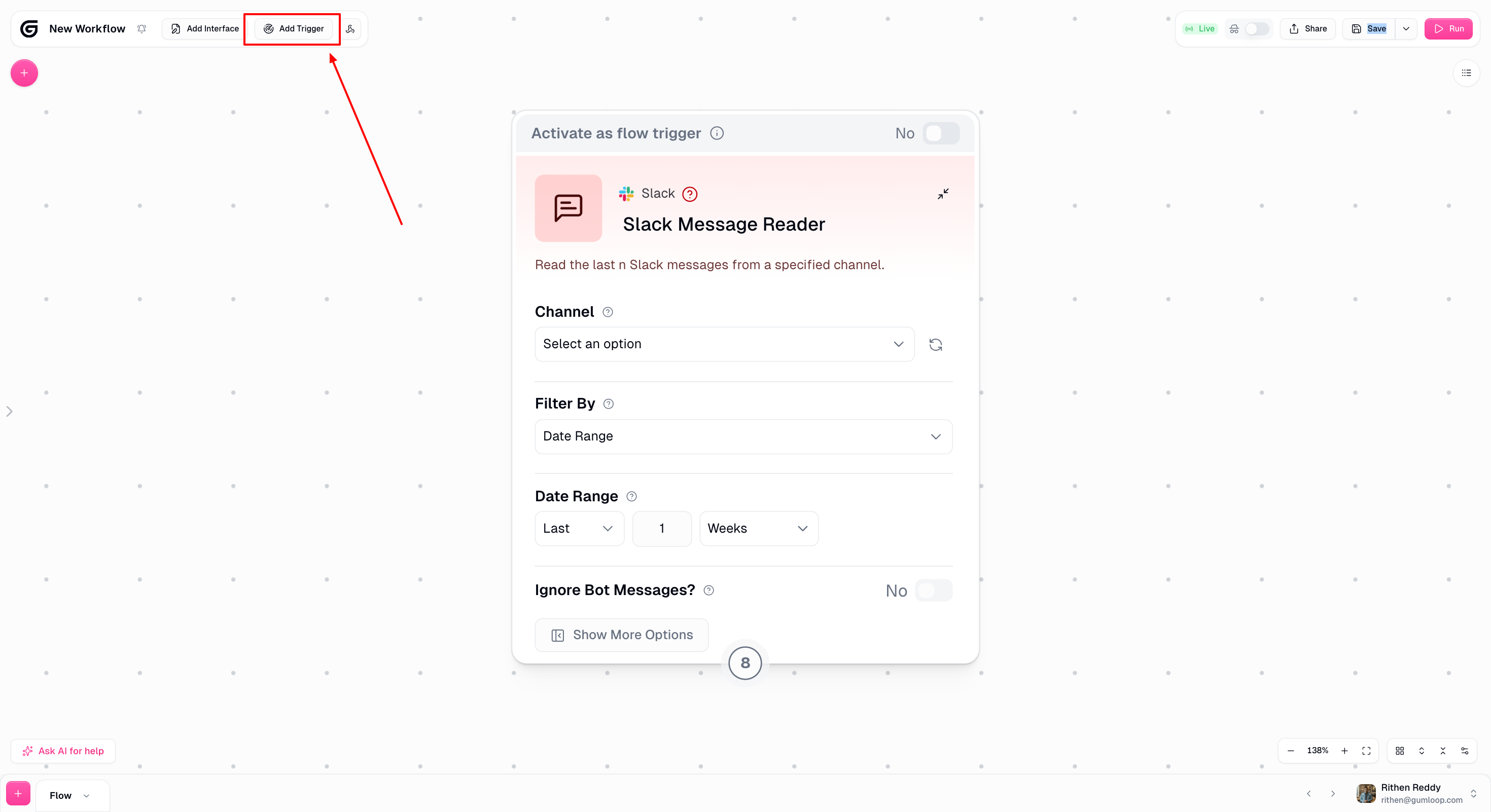
Select Create a Time Trigger from the trigger type options.
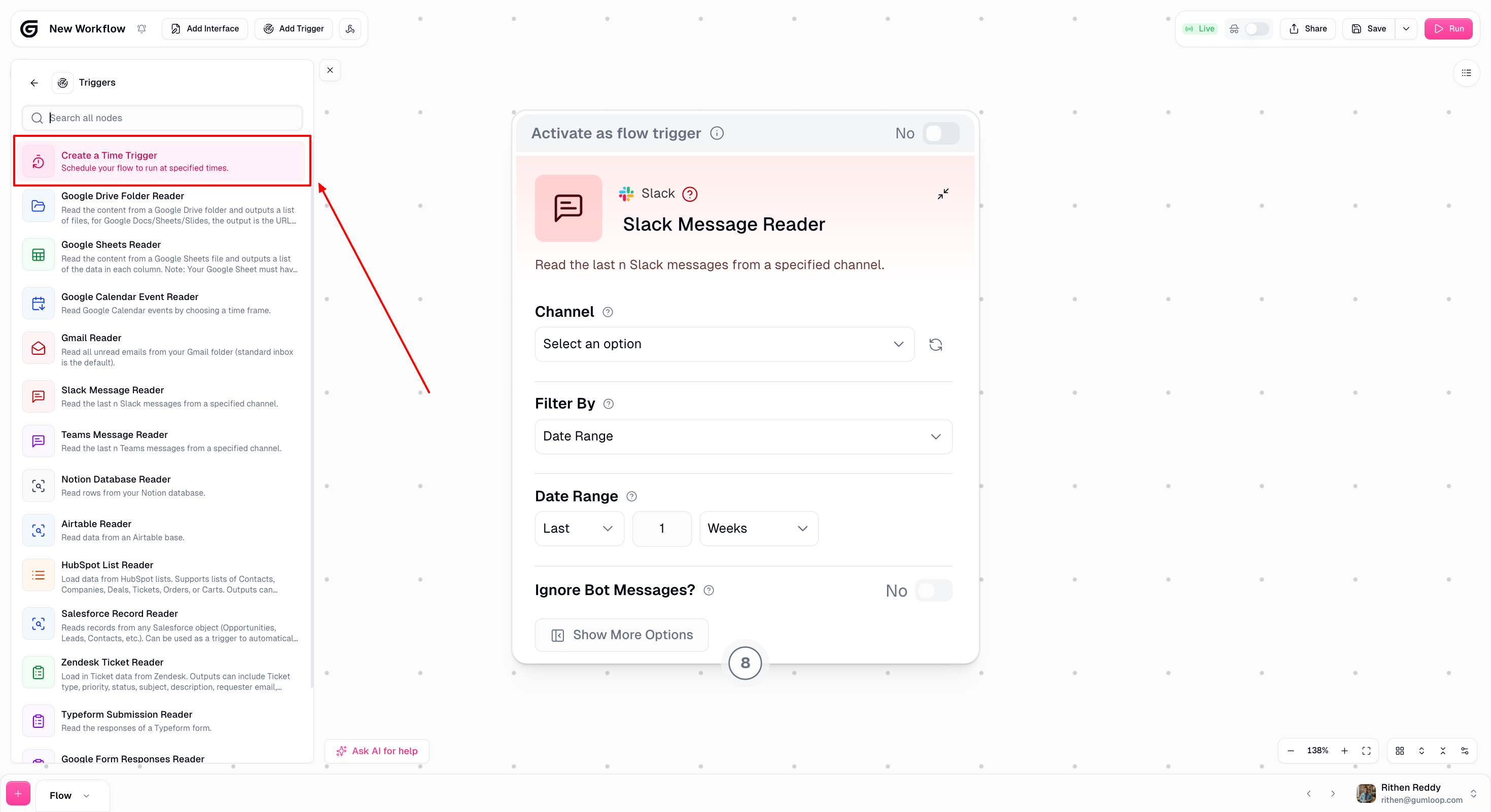
Describe your desired schedule in plain language (e.g., "every weekday at 9 AM Eastern").
Click Create to enable your trigger.
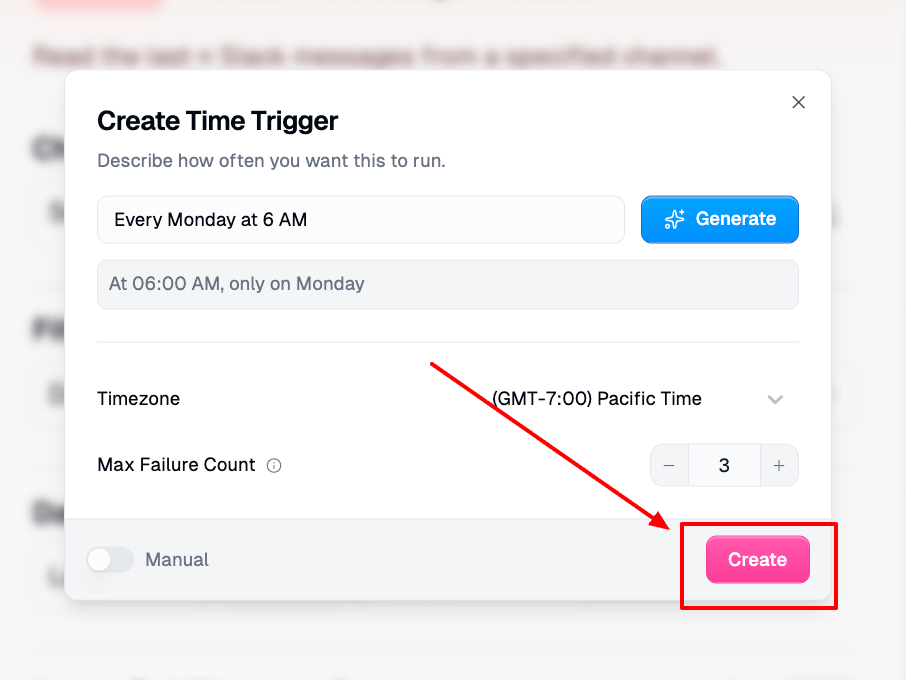
Configuring Your Schedule
You can configure the schedule in two ways: natural language or manual cron.
Natural Language
Type a plain-English description of when you want the workflow to run. For example:
"Every Monday at 6 AM""Every weekday at 10 AM""Every hour"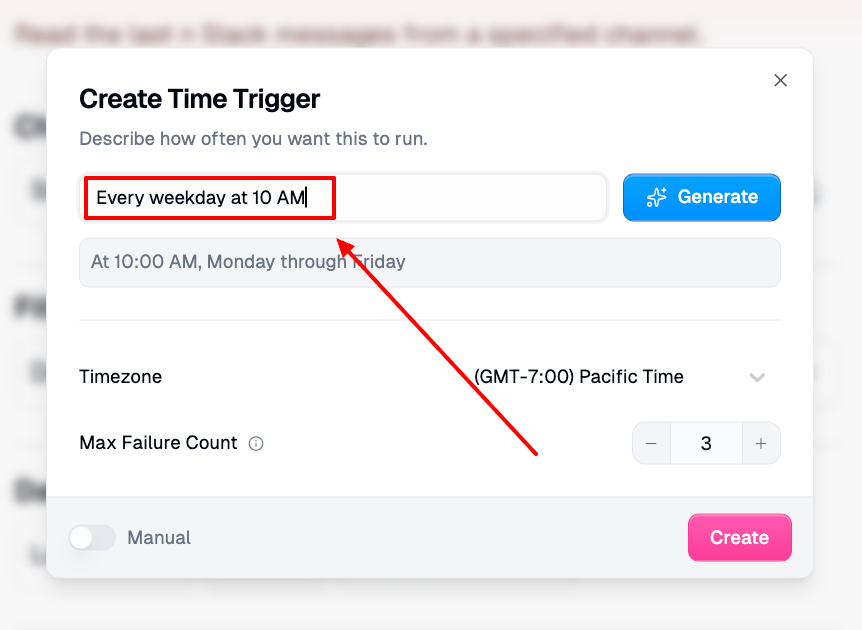
The Timezone dropdown below the description field defaults to your local timezone. Change it if you want the schedule to run in a different timezone.
Manual Cron Expression
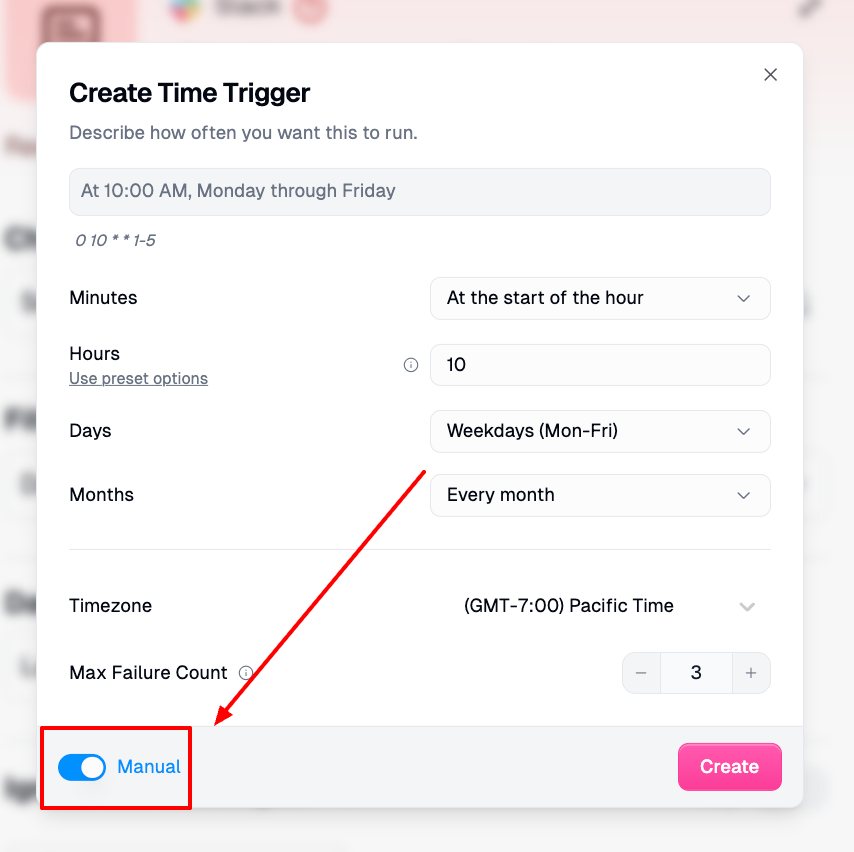
Toggle Manual in the trigger dialog to enter a cron expression directly. Use this if natural language gives you an error or if you need a very specific schedule.
See the Manual Time Settings reference for the full list of fields and examples.
Common Issues
My trigger suddenly stopped firing:
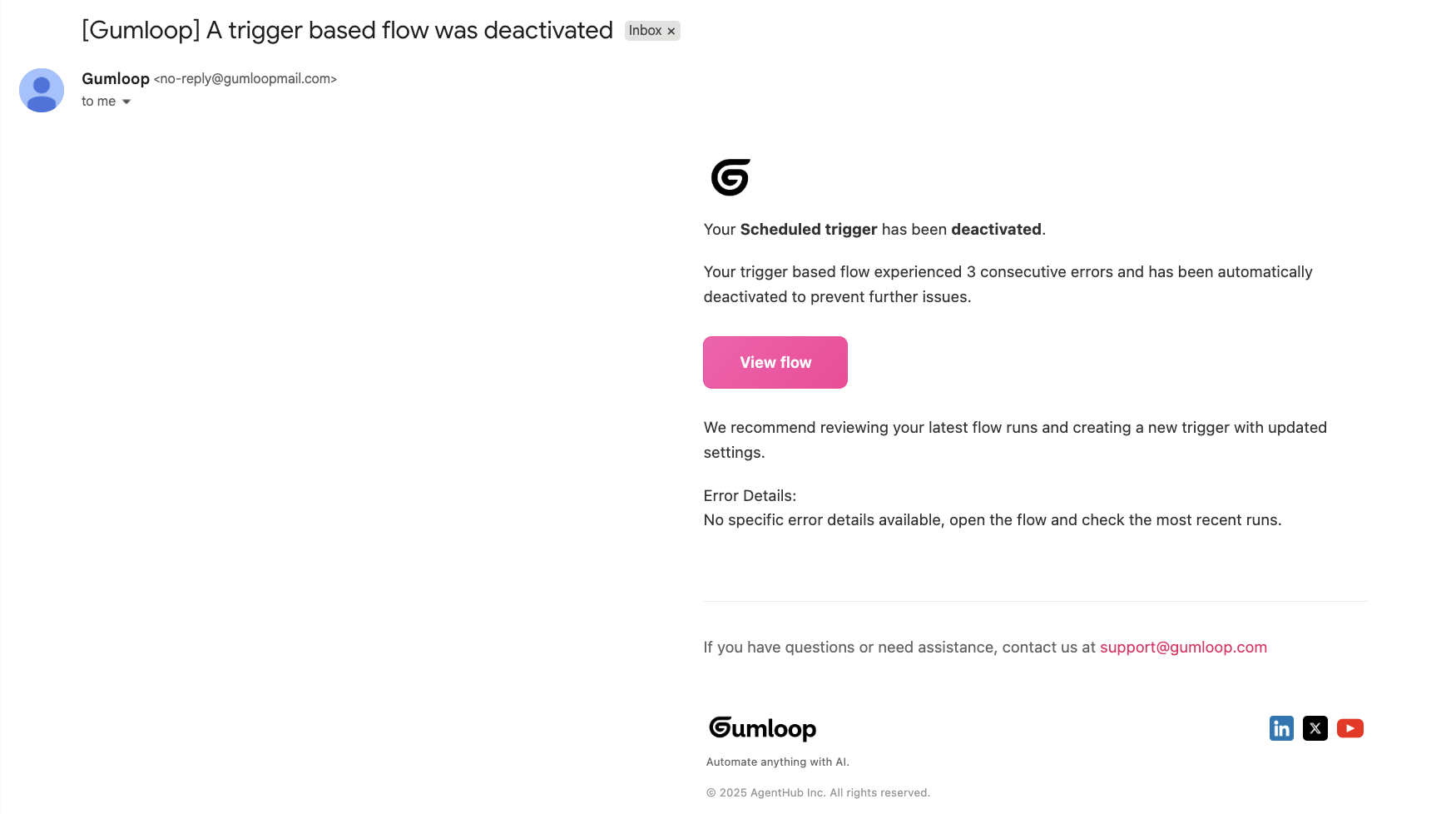
Triggers auto-delete after 3 consecutive failed runs. When a trigger is deleted this way, the trigger owner receives an email notification. Check your inbox and spam folder for this notification.
To recover:
Fix the root cause of the failure (often an expired authentication or a broken node).
Re-add the Time Trigger node to your workflow and configure the schedule again.
Consider increasing the Max Failure Count in the cron settings to give yourself more time to catch issues.
Use an error shield to prevent trigger failures from cascading.
I get an "Invalid cron expression" error
Complex schedules described in natural language sometimes fail to parse correctly.
To fix this:
Try simpler, more direct language (e.g., "every weekday at 9 AM" instead of "every business day except holidays at 9 AM Eastern time").
Switch to manual cron entry using the settings cog for full control.
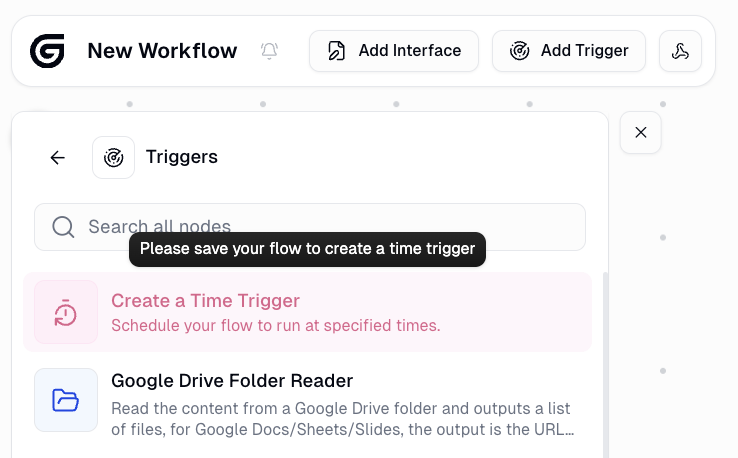
I'm unable to click on create a time trigger
Make sure you have a saved workflow ready to schedule. You should save your workflow both before and after adding a trigger.
I can't create a new trigger
On the Free plan, you can only have 1 active trigger at a time across all workflows. Deactivate your existing trigger first, then create the new one. Upgrade to Pro to run multiple triggers simultaneously.
For anything else, reach out at support@gumloop.com or in the shared Slack channel.