How Do I Use Shared Team Credentials in My Agent
Last updated: April 7, 2026
To use shared team credentials in your agent, the agent must be inside a team. Then switch each integration from "Personal Default" to "Team Default" in the integration options. All team members will use the same shared account automatically.
Note: Team credentials require the agent to live in a team. If you just want someone to edit or chat with your agent (without shared credentials), you can share it directly via the Share button — no team required.
Before You Start
Make sure your team already has shared credentials set up. If not, see How Do I Add Shared Team Credentials (Team Apps)? first.
How to Use Team Credentials in an Agent
If you have an existing agent in your personal space
Go to the Home page
Click the three dots (⋮) next to your agent
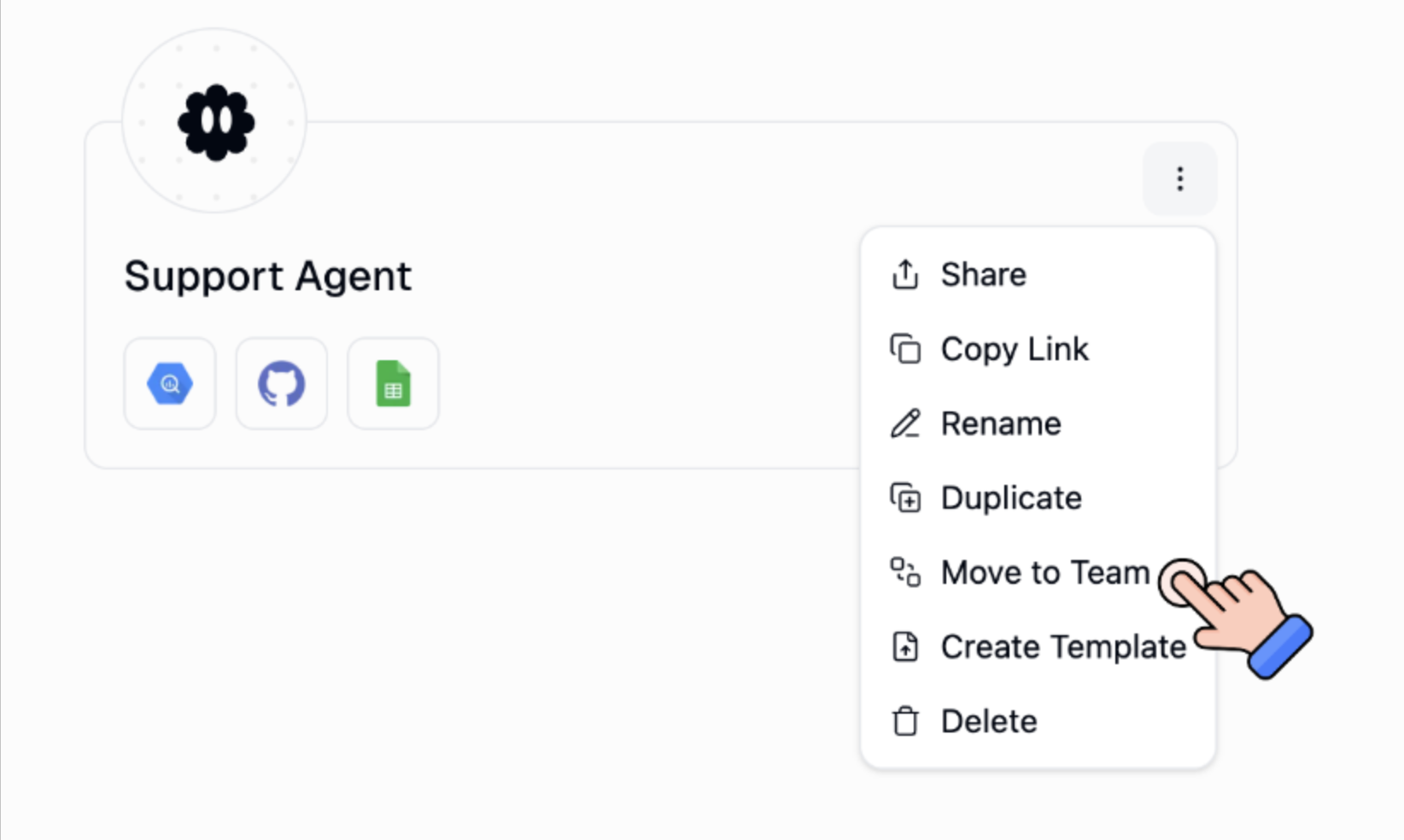
Select Move to Team and choose the team that has the shared credentials
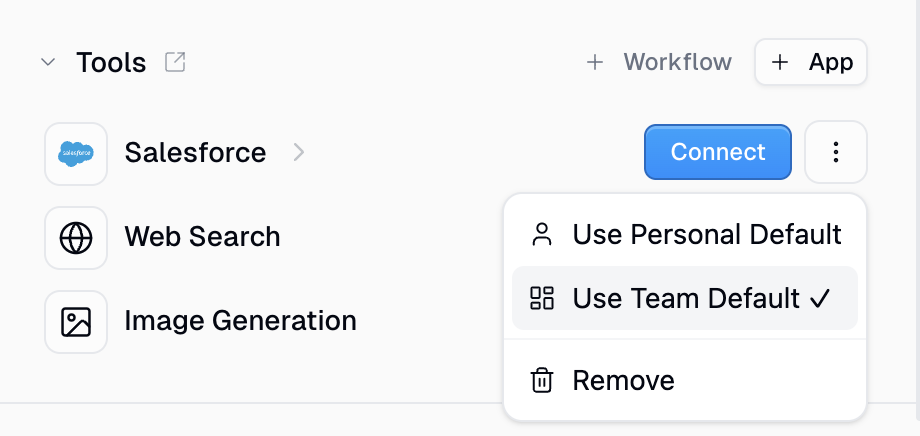
Open the agent and click on the three dots (⋮) next to the integration
For the integration, click the credential selector and switch from Personal Default to Team Default
If you're creating a new agent
Switch to the team workspace from the sidebar which has those shared credentials.
ie. if the shared credentials are present on the
Marketingteam, create the agent under that team.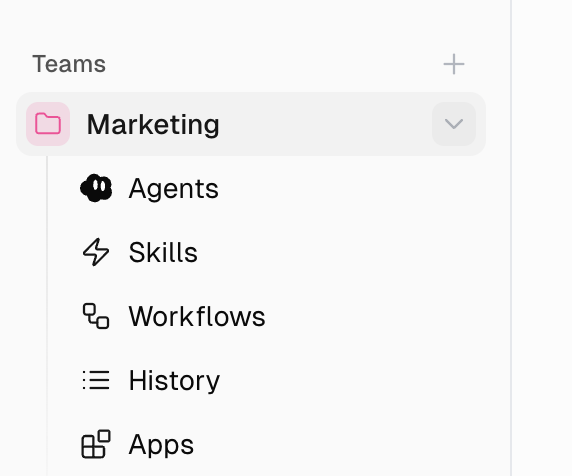
Create your agent — it will live inside the team automatically
When adding integrations, you'll see Team Default as an option in the credential selector
Select Team Default for each integration that should use the shared credential
Note: You won't see the "Team Default" option if the agent is in your personal space. The agent must be in a team.
Good to Know
When using Personal Default on a team agent, each user runs with their own accounts. Users who haven't connected the required service will be prompted to authenticate.
When using Team Default, nobody on the team needs to individually connect that service — the shared credential handles it for everyone.
You can mix and match: use Team Default for Salesforce but Personal Default for Gmail on the same agent.
Related Articles & Docs
How Do I Let Someone Else Edit My Agent or Workflow? — moving agents to a team for shared editing
Apps & Credentials — full reference for personal and team apps
Still Need Help?
If this didn't resolve your issue, reach out to support at support@gumloop.com.