How to Restrict Which Tools an Integration Can Use in Your Agent
Last updated: March 25, 2026
You can disable specific tools on any integration connected to your agent. Open the agent, click the integration in the Tools panel, and toggle off the actions you don't want the agent to use. Only the tools left toggled on will be available.
Why Restrict Tools?
By default, when you add an integration to your agent, every tool that integration offers is enabled. That means your agent can take any action the integration supports — including destructive ones like deleting records or sending messages.
Restricting tools lets you:
Prevent destructive actions (deleting, sending, updating) while keeping read-only access
Make your agent's behavior more predictable and easier to trust
Reduce the risk of unintended operations
Improve reliability by narrowing the agent's decision space
How to Disable Specific Tools
Open your agent.
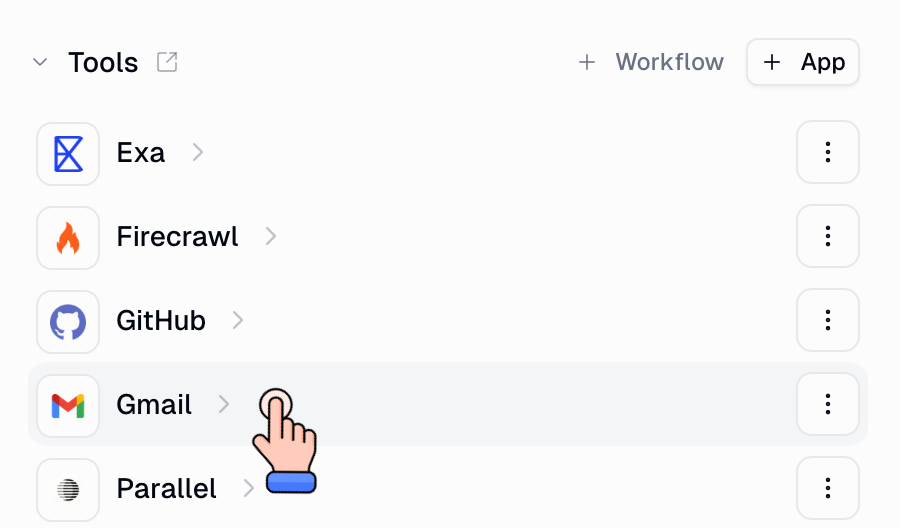
In the right-hand panel, find the Tools section.
Click on the integration you want to configure (e.g., Gmail, Slack, Salesforce).
You'll see a list of every tool that integration offers, each with a toggle.
Toggle off any tools you don't want the agent to use.
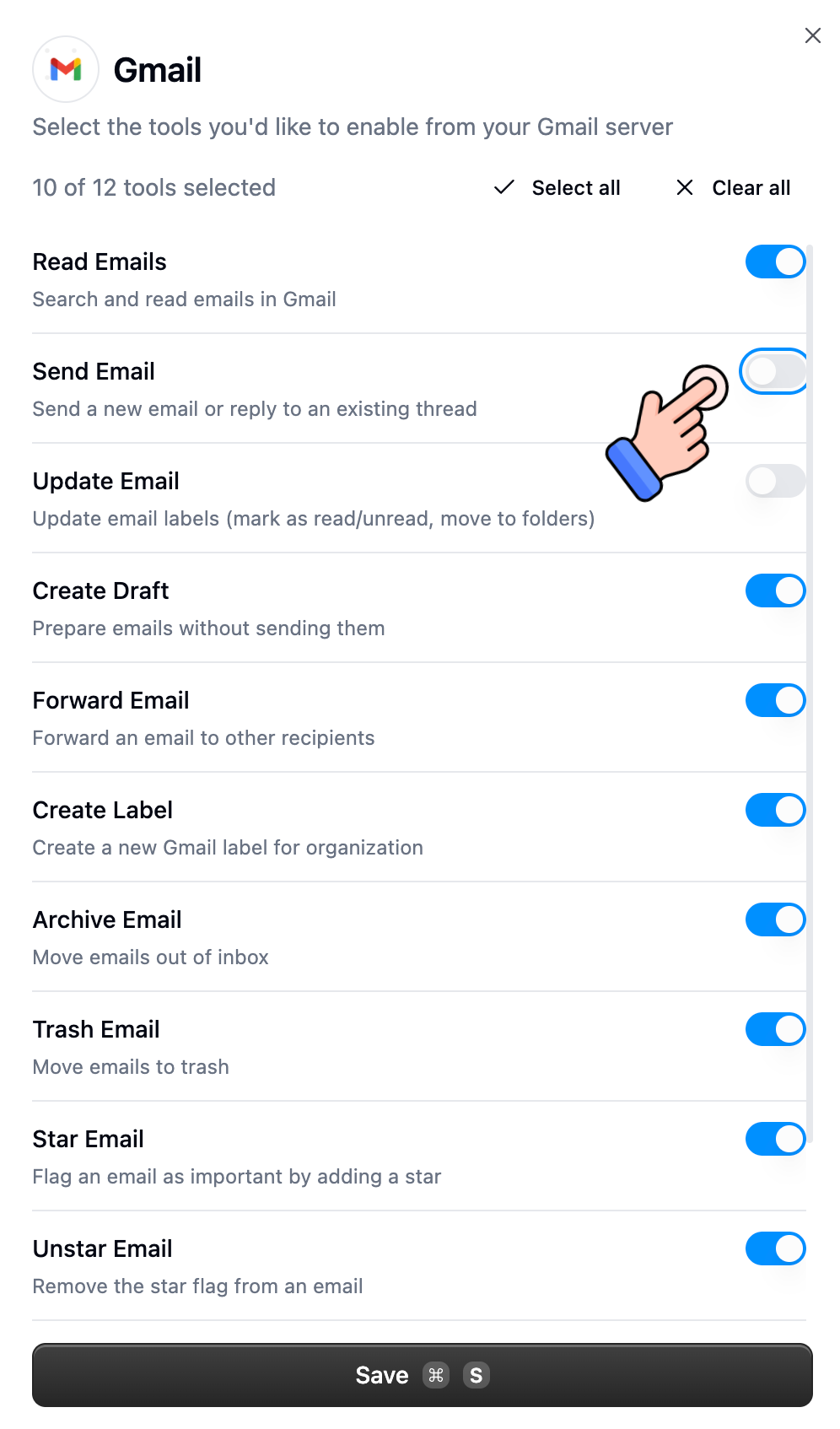
Click Save in the top-right corner.
Only the tools left toggled on will be available to the agent. Disabled tools are completely hidden from the agent — it won't see them or try to use them.
Example Configurations
Here are some common setups that keep your agent useful while preventing risky actions:
Integration | ✅ Keep On | ❌ Turn Off |
Gmail | Search emails, Read emails | Send email |
Salesforce | Get account, Search records | Delete record, Update record |
Slack | Read messages, Search channels | Send message, Create channel |
Google Sheets | Read spreadsheet, List sheets | Delete sheet |
Tip: Tell the Agent About Its Restrictions
After restricting tools, add a line to your agent's System Prompt so it handles restricted actions gracefully:
If a user asks you to perform an action that's disabled (like sending an email), explicitly tell them that capability is not available for this agent.Without this, the agent may attempt the action and return a confusing error instead of a clear explanation.
This Also Works for Custom MCP Servers
The same toggle interface works for any custom MCP server you've connected to your agent. Click the server in the Tools panel and toggle off individual tools the same way.
Still Need Help?
If this didn't resolve your issue, reach out to support at support@gumloop.com.