How Do I Add Someone to My Team?
Last updated: April 10, 2026
The fastest way to add someone to your team is to right-click the team name in the sidebar and select Invite to Team. Enter their email, and they'll be added once they accept.
Option 1: Invite to Team From the Sidebar (Quickest)
Go to the Home page
Right-click your team name in the sidebar
Select Invite to Team
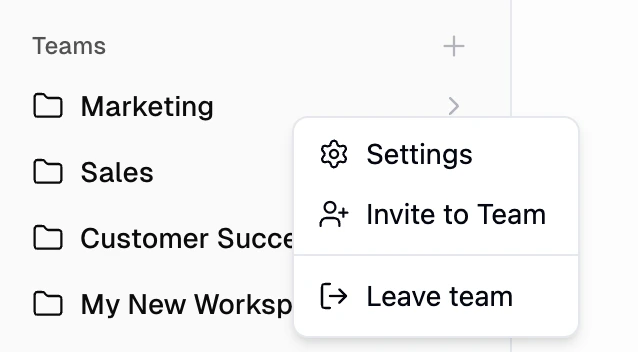
Enter the email address of the person you want to invite and send it. They'll receive an invite and be added to the team automatically once they accept.
Option 2: From Team Settings
Go to the Home page
Right-click your team name in the sidebar
Select Settings
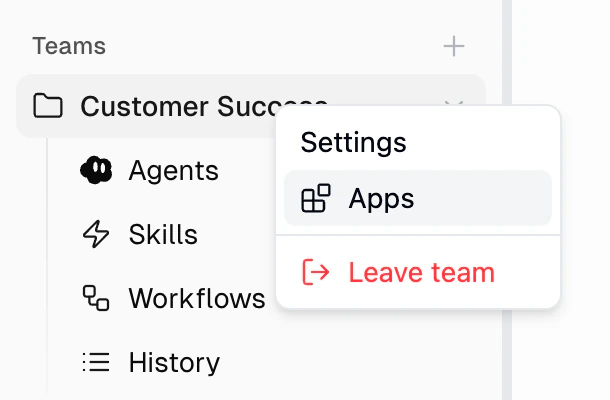
Click Add Member
Enter their email address and send the invite
They'll receive an invite and be added to the team automatically once they accept.
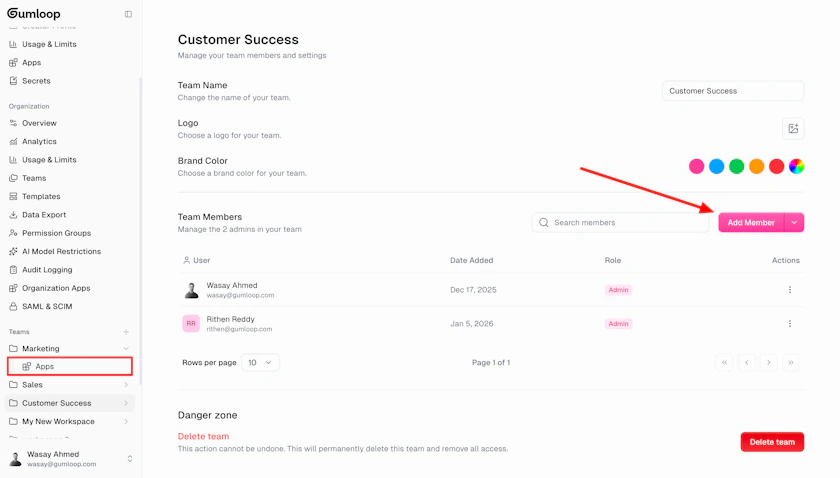
Option 3: From Organization Settings
Go to Settings → Teams
Click on the team you want to manage
Click Add Member in the Team Members section
Good to Know
The person you invite must be part of your Gumloop organization. If they haven't signed up yet, they'll need to create an account first.
All team members get Editor access to agents and workflows in the team by default.
Teams and organizations are available on the Pro plan and above. If you're on a free plan, you won't see team options.
Related
Organization and Teams — full docs on teams, personal spaces, and collaboration
Organization Roles — what Members, Admins, and Owners can do
Share Permissions — Editor, Viewer, and Use Only access levels