How Do I Create a Team in Gumloop?
Last updated: April 7, 2026
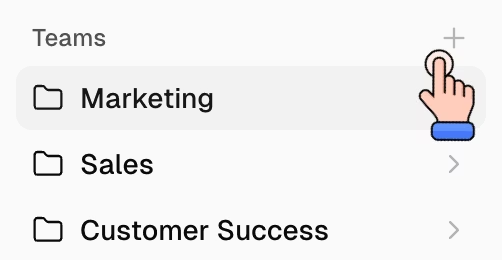
Teams are shared workspaces for groups that collaborate on multiple agents and flows. To create one, click the
+icon in the Teams section of your sidebar, or go to Settings → Teams and click Create. To create one, click the+icon in the Teams section of your sidebar, or go to Settings → Teams and click Create. Teams require a Pro plan or above.
Before You Start
You need a Pro plan or above — teams are not available on the Free plan.
Your organization admin may have restricted team creation. If you don't see the option, ask your admin to enable it.
How to Create a Team
Option 1: From the sidebar
Go to the Home page.
Find the Teams section in the left sidebar.
Click the + icon next to "Teams."
Enter a team name, choose a logo, and pick a brand color.
Click Create.
Option 2: From Organization Settings
Go to Settings → Teams.
Click the Create button.
Enter a team name, choose a logo, and pick a brand color.
Click Create.

What Happens Next
Once created, your new team appears in the sidebar. You are automatically added as a team admin. From here you can:
Add members — right-click the team in the sidebar → Settings → Add Member, then enter their email address.
Connect team apps — right-click the team → Apps → Connect New App. Team apps (shared credentials) are available to all team members when running agents and flows.
Move existing agents or flows into the team — on the Home page, click the three dots (⋮) next to an agent or flow and select Move to Team.
Do I Actually Need a Team?
Most agents and flows should live in your personal space. Create a team only when:
Multiple people actively edit the same agent or flow.
The team collectively maintains it — no single person owns it.
You need shared team apps (credentials everyone uses).
Team members need to cover for each other.
If you just want someone to edit a specific agent or flow, you don't need a team — use the Share button on the resource directly. See Share Permissions.
Good to Know
All teams share your organization's credit pool. There's no separate billing per team.
Organization admins can set a default team that new members automatically join from Settings → Teams.
Team members have two roles: Admin (full control over team settings, credentials, and members) and Member (default access to resources in the team). By default, team members get Viewer access to resources. To give someone edit access, explicitly add them as an Editor via the Share dialog on the specific resource.
Troubleshooting
I don't see the + icon or Create button — You're likely on the Free plan, or your organization admin has restricted team creation. Upgrade to Pro or ask your admin to enable it.
I created a team but my colleague can't see it — You need to add them as a member first. Right-click the team → Settings → Add Member.
Related Docs
Organization and Teams — full reference on teams, personal spaces, and organizations
Organization Roles — details on roles and permissions
Apps & Credentials — setting up personal and team app connections
Still Need Help?
If this didn't resolve your issue, reach out to support at support@gumloop.com.